Page Index
Need help? We are here for you.
Need help? Contact support using the live chat button. If we are unavailable, we will reply by email.
Welcome to Adly Knowledge Base
Your comprehensive guide to using Adly's AI-powered creative tools. Learn about all features, modes, best practices, and how to get the most out of your subscription.
Getting Started
Setting Up Your Brand
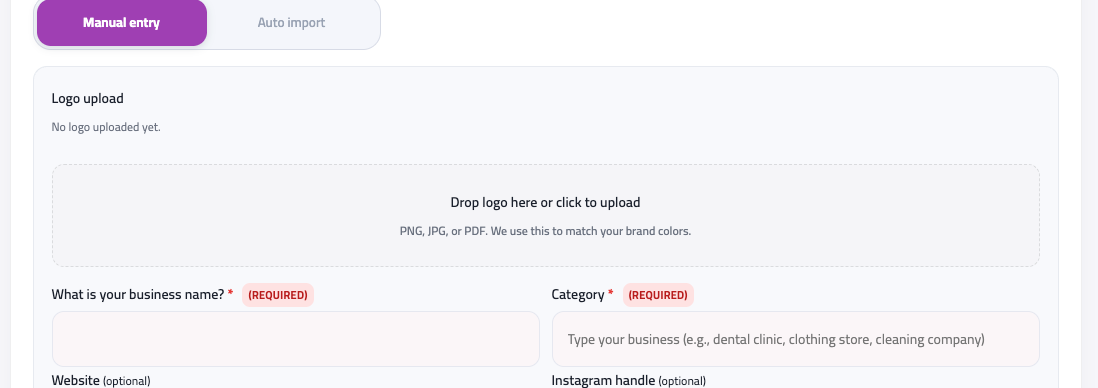
Before creating your first job, you need to set up a brand. This includes:
- Upload your brand logo (required for best results)
- Add business information (name, category, website, social media)
- Define your target audience and price range
- Set your business location and contact details
Creating Your First Job
- Select a brand from the brand switcher
- Click "Create job" on the dashboard
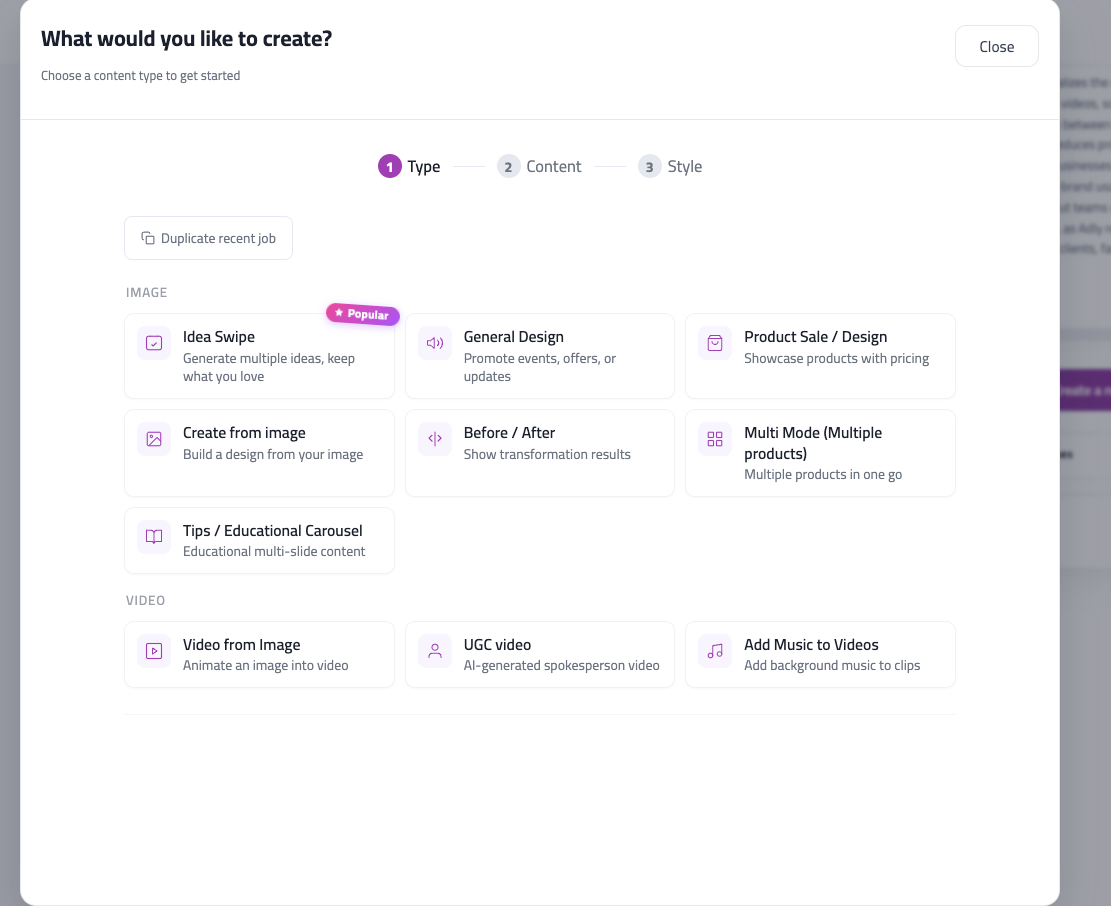
- Choose a job type that matches your needs
- Provide creative direction or upload product images
- Select image size (Post 1:1 or Story 9:16)
- Click "Generate" and wait for your design
Job Types & Modes
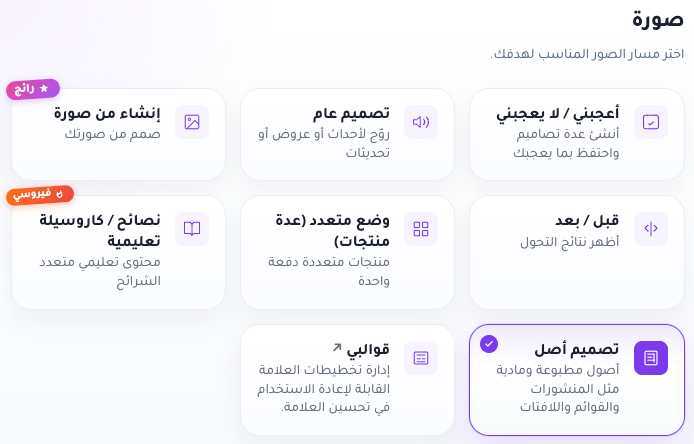
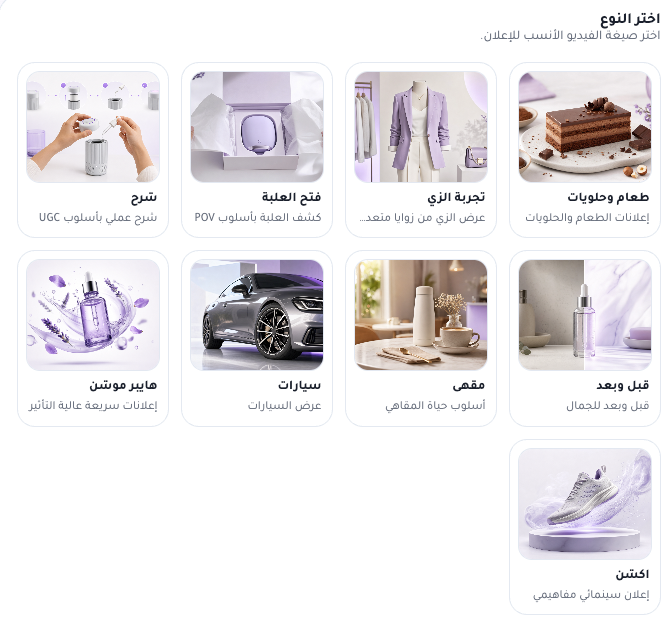
The Create job wizard groups workflows into Images, Video, Brand & Publishing, and Ads & Marketing. Pick the type that matches your goal before you start.
Image workflows
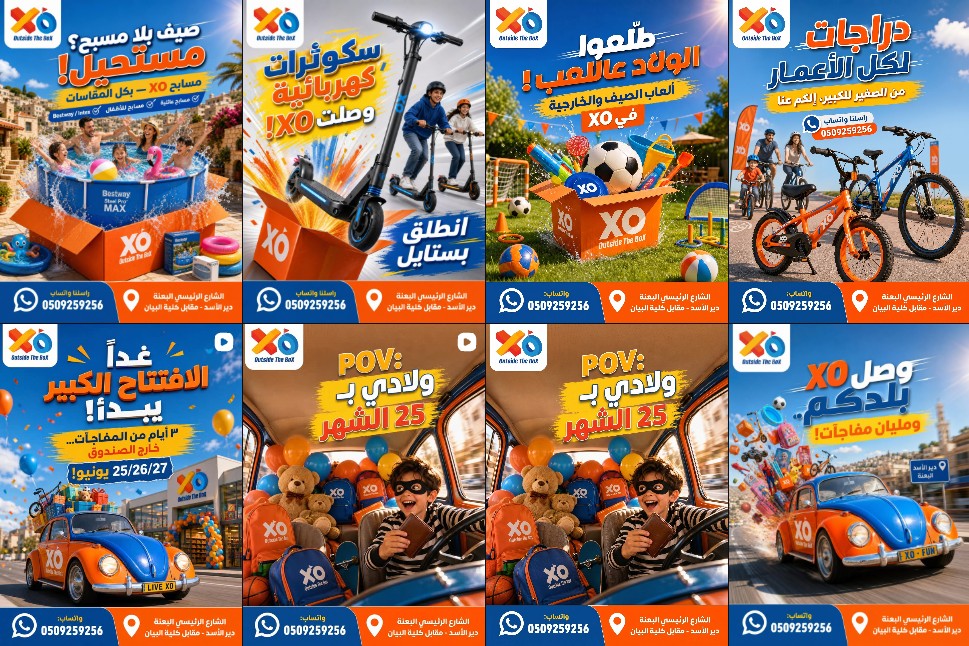
Idea Swipe
Like Tinder for designs: Adly generates 3, 6, or 9 distinct concepts in one run — each with a different creative angle such as sales, luxury, or bold. Swipe right to save favorites for later; dismiss the rest.
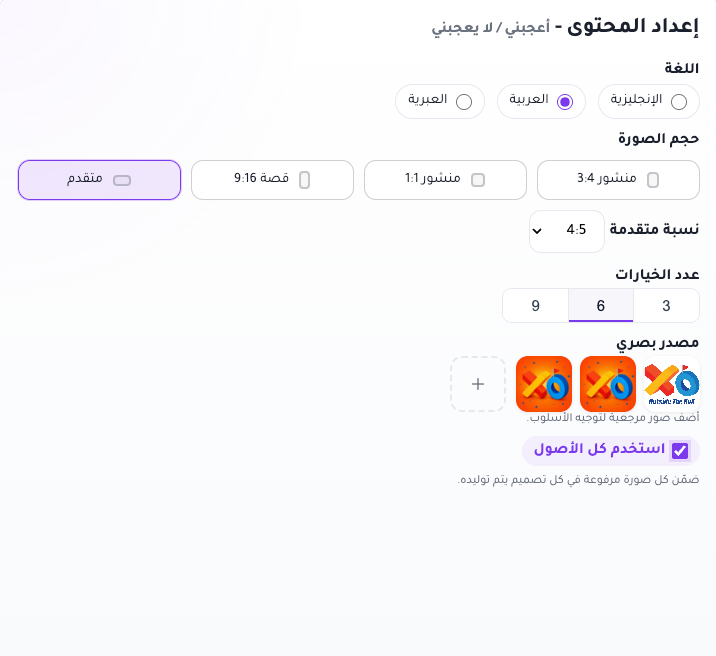
On the content step, pick language, image size (Post 3:4, Post 1:1, Story 9:16, or Advanced ratio), and how many options to generate (3, 6, or 9). Add a Text or idea unless you attach visual references — upload up to 3 reference images to guide style, and enable Use all assets to include every upload in each concept. Each option costs one image credit.
- Text or idea, or visual reference images
- Concept count: 3, 6, or 9
General Design
Text-led social posts for announcements, offers, events, and general brand content. Describe what you want in the Creative brief and Adly generates one on-brand graphic in your chosen language and size — no product photo required.
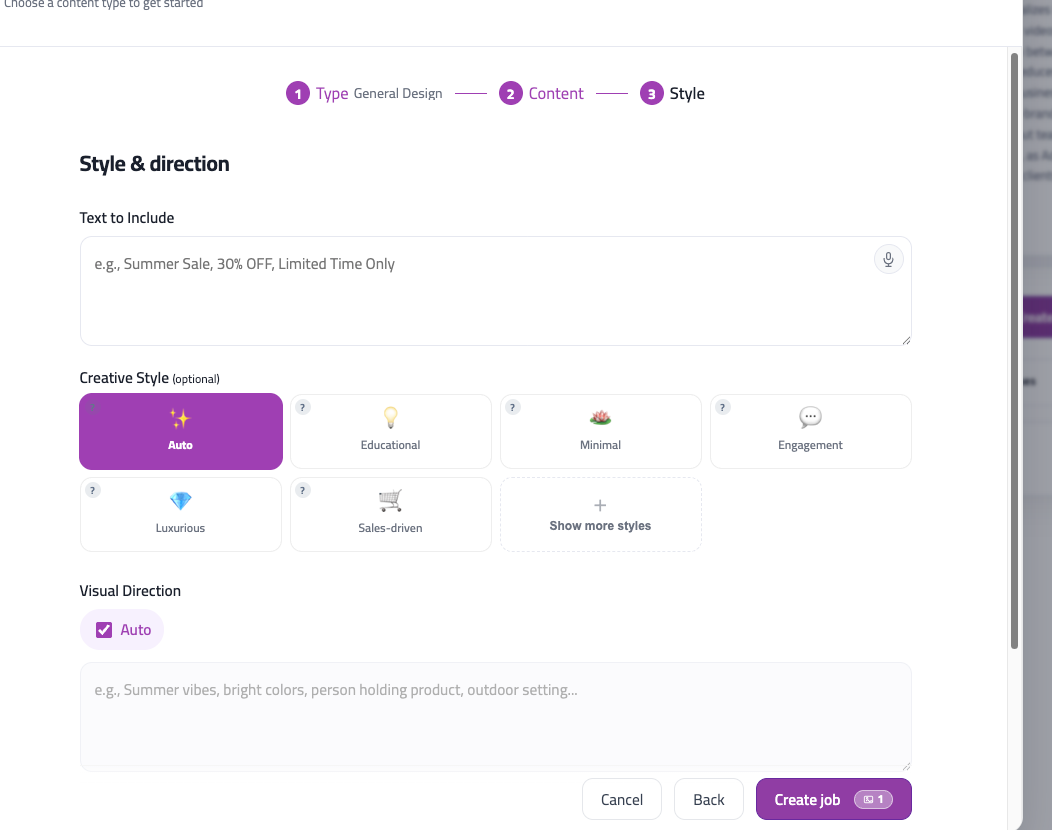
Fill Text or idea (with optional Treat as exact text), pick a Creative style, set Visual direction or choose From template, and toggle contact details to print on the design. Agency plans can enable Multi-brand jobs to run the same brief across multiple brands. 1 image credit per design.
- Creative direction text (required)
Create From Image
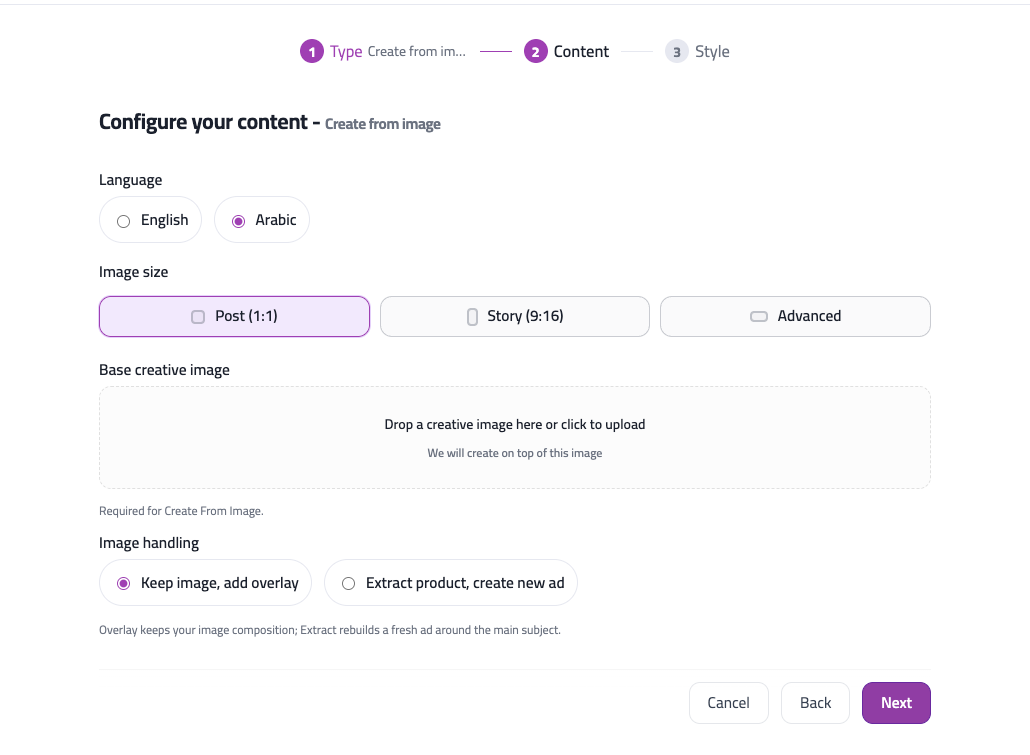
The best mode for selling products and generating product-focused designs. Upload 1–3 photos (PNG, JPG, HEIC) or pick from your Adly library — at least one image is required, and library videos are not supported.
On the content step, pick language and image size (Post 3:4, Post 1:1, Story 9:16, or Advanced ratio), upload up to 3 images or pick from Adly library, then choose Extract product, create new ad or Keep image, add overlay. The Creative brief is optional: Text or idea, Creative style (including Food mode for restaurants), Visual direction, and @image1–@image3 tags when mixing multiple references. There is no separate Creative direction field — 1 image credit per design.
- At least 1 image (upload or Adly library)
- Text, creative style, and visual direction (all optional)
Before / After
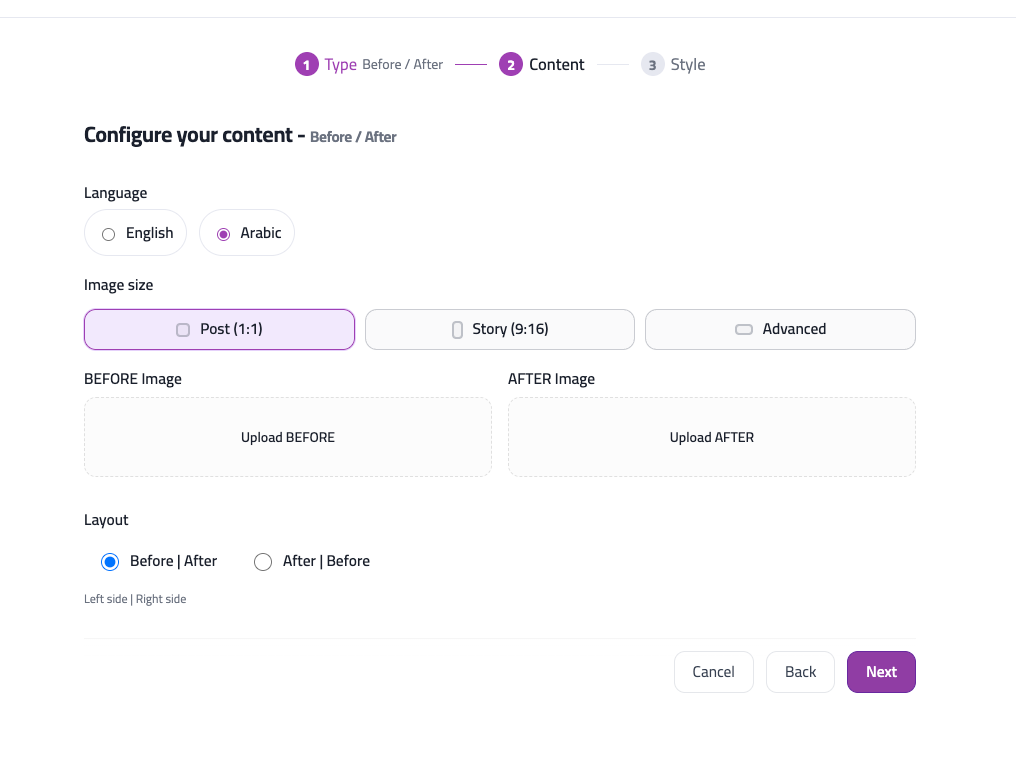
Side-by-side transformation posts for beauty, fitness, home improvement, clinics, and any proof-of-results story. Upload separate BEFORE and AFTER images — both are required — and pick layout order (Before | After or After | Before).
Add optional Text or idea, Creative style, and Visual direction in the brief; the separate Creative direction field is hidden in this mode. You can also start from a saved template. Outputs one comparison graphic — 1 image credit.
- Before and after images (both required)
- Layout order selection
Multi Mode
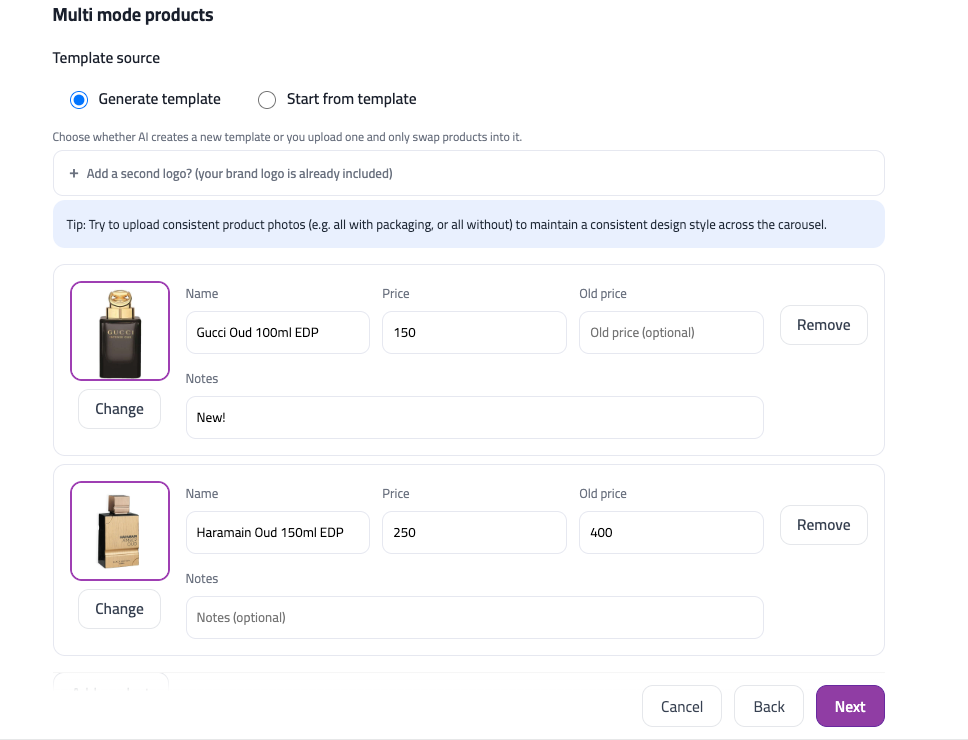
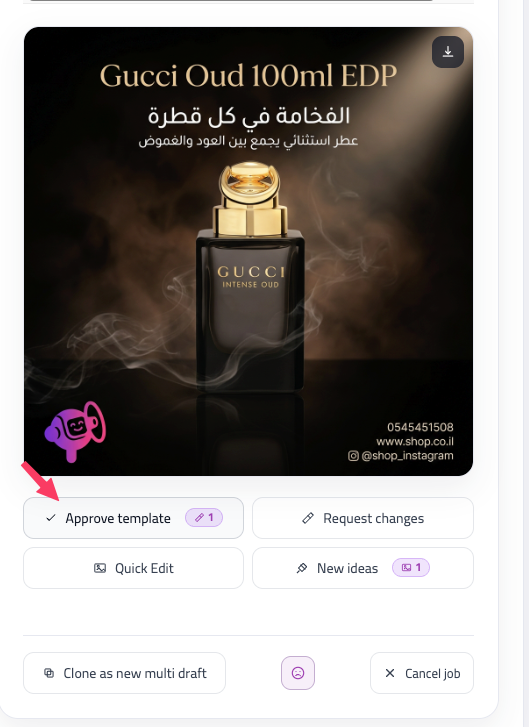
Catalog-style promos where every product gets its own price-tagged design in a shared layout. Add up to 20 products — each row needs an image, name, and price (old price and notes optional) — then approve a master template before generating one image per product.
Choose Generate template so Adly builds the layout first, or Start from template to reuse a saved brand template (template image required). Output is always Post 3:4. Template generation costs 1 image credit; generating variants from your own template costs 1 credit per product.
- At least 1 product (up to 20 products per job)
- Each product needs: image, name, price (optional: old price, notes)
Limitations: Maximum 20 products per job. Always generates in Post 3:4 size.
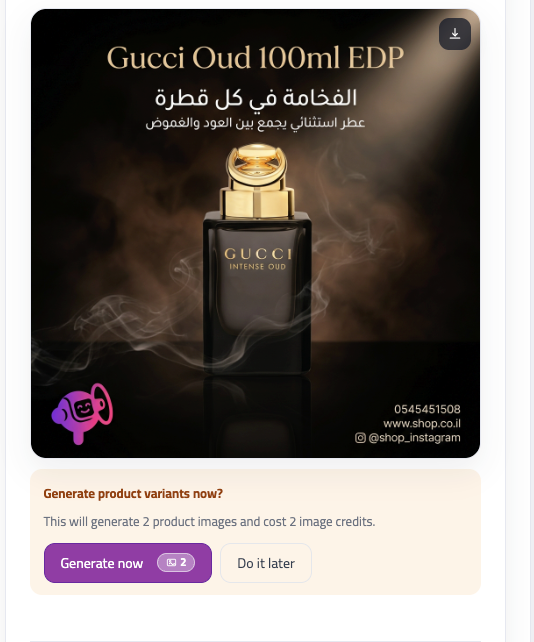
Tips Carousel
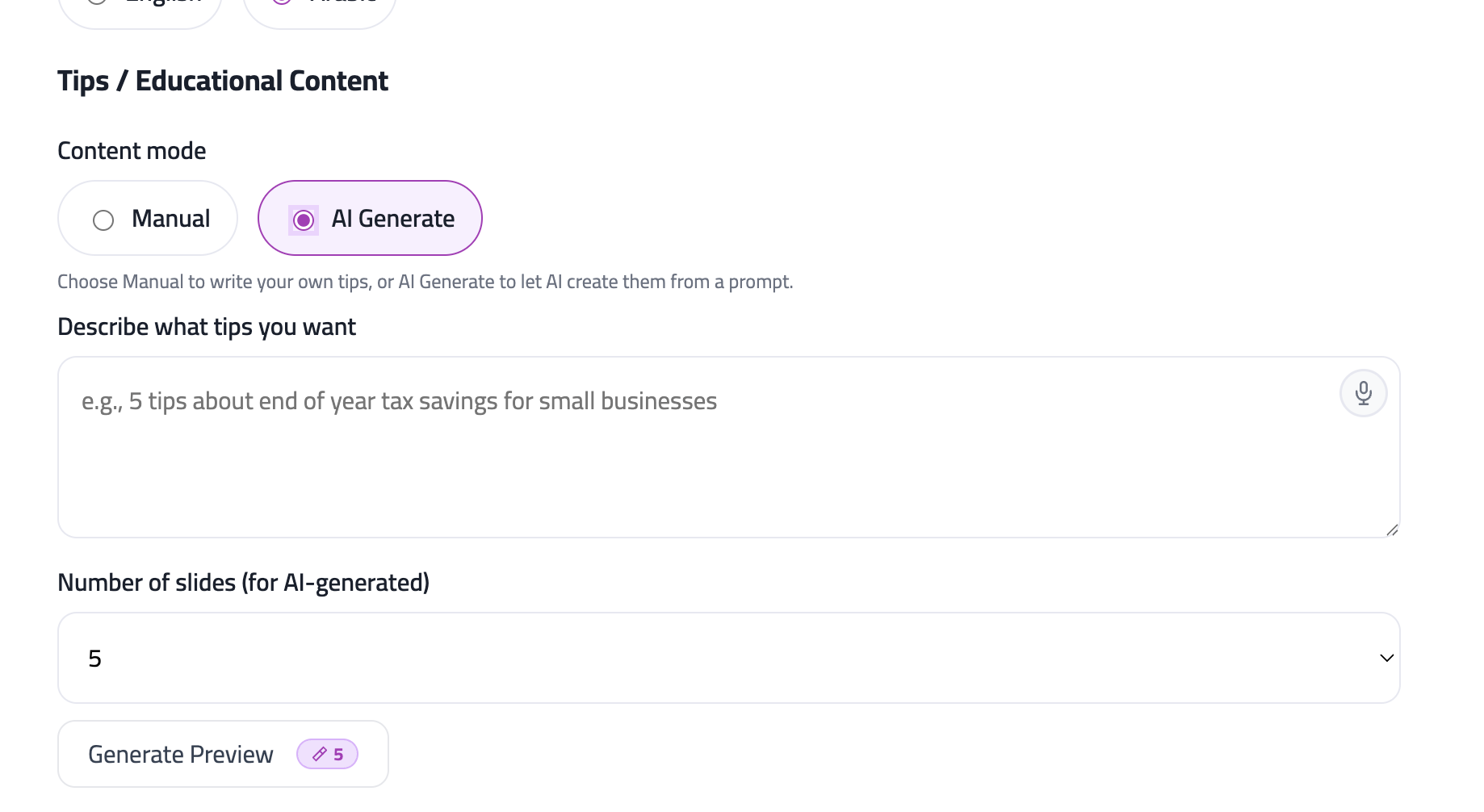
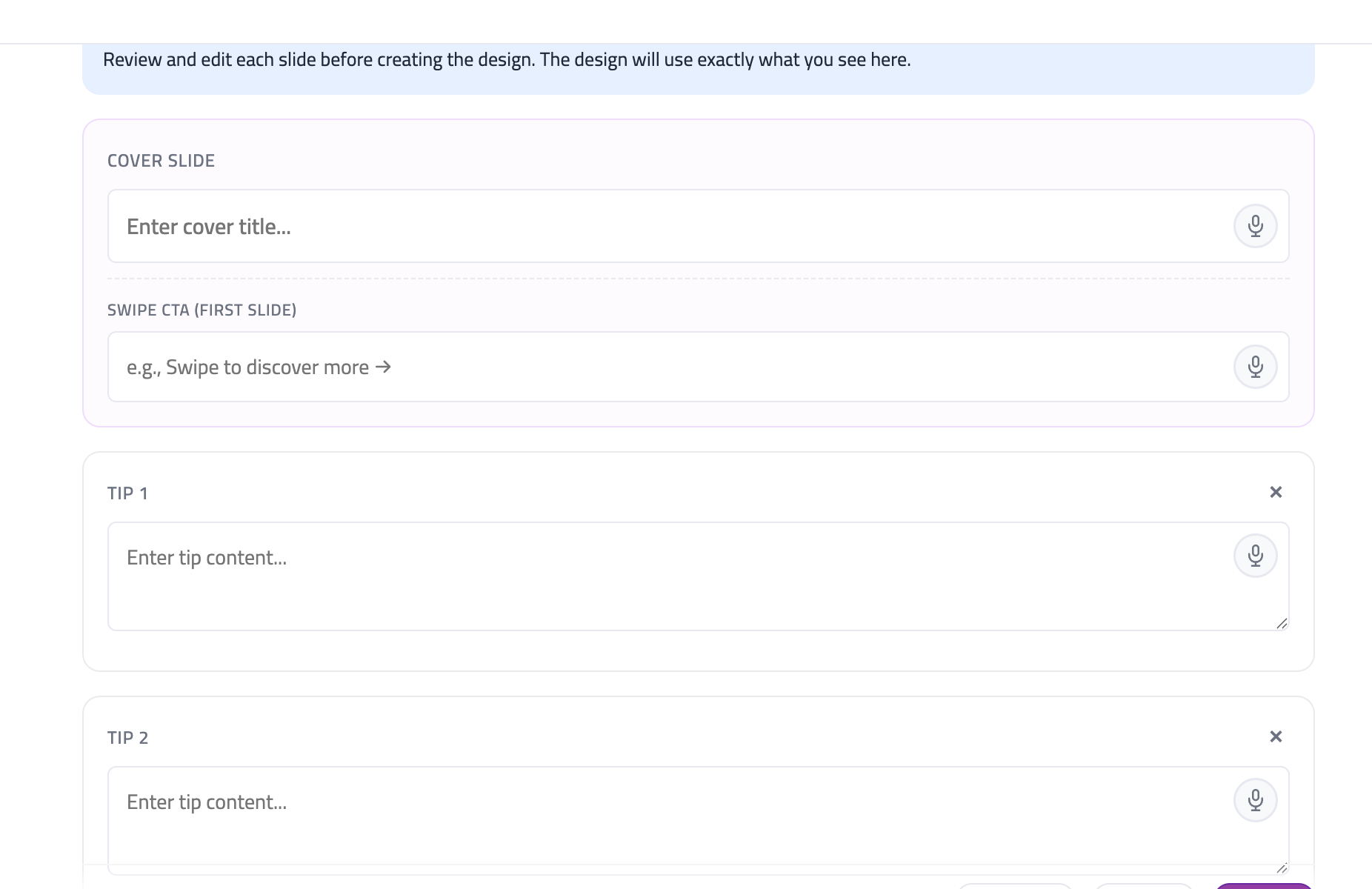
Educational swipe posts and how-to carousels — 3–10 slides designed as a set (cover plus tips). Choose Manual to write each slide yourself, or AI Generate to draft copy from a short idea, then edit the slide preview before final design generation.
Toggle slide numbers, brand logo, and locked designs as needed; add optional swipe/follow CTAs and per-slide visual direction or reference images. Each slide costs 2 image credits (Super mode applies). Fixed Post 3:4 output. AI preview generation uses separate text credits.
- Tips content or educational text (required)
- Number of tips (3-10, default: 5)
Limitations: Always generates in Post 3:4 size for carousel compatibility.
Asset Design
Print-ready flyers, menus, banners, posters, and other offline materials — not just social posts. Describe the asset type, copy, and use case in the brief; pick language and print-oriented sizes including Advanced ratios.
You need Text or idea, visual direction, or an uploaded reference in the brief. Adly generates a design-only deliverable; approve and export print-quality output from the job when ready. Uses your brand logo and business details from the profile — 1 image credit per asset.
- Creative direction describing the asset (required)
- Brand logo and business details in your brand profile
My Templates
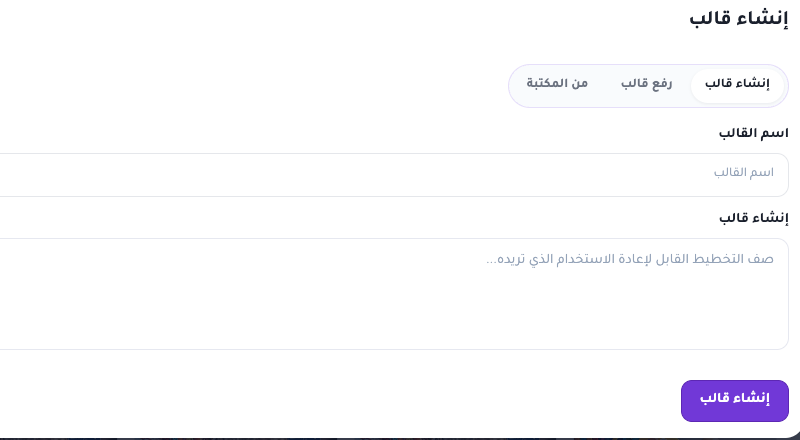
Reusable brand layouts managed in Brand Optimizer — same footer, logo placement, typography, and shell every time while Adly swaps the dynamic content inside. The create wizard links here instead of opening an inline flow.
Upload an existing layout, generate a new one, or pick from your library, then name and save it to the brand. Use saved templates in General Design (From template), Multi Mode, and other flows. Generating a new layout uses image credits.
- Upload, generate, or pick a layout from your library
- Name the template and save it to the brand
Open My Templates in Brand Optimizer
Video workflows
Product Studio
Short product videos from preset formats — pick a style template, upload a required product image, and optionally add actor and scene references. Set length (5–15 seconds), aspect ratio, resolution, and an optional style hint — all on one step; there is no separate style wizard.
Credits scale with duration and resolution tier (480p vs 720p). Best when you want a polished product clip without UGC scripting or Director Mode complexity. Replaces the older separate Product scene video type in the create picker.
- Product reference image (required)
- Optional actor and scene references depending on format
UGC Video
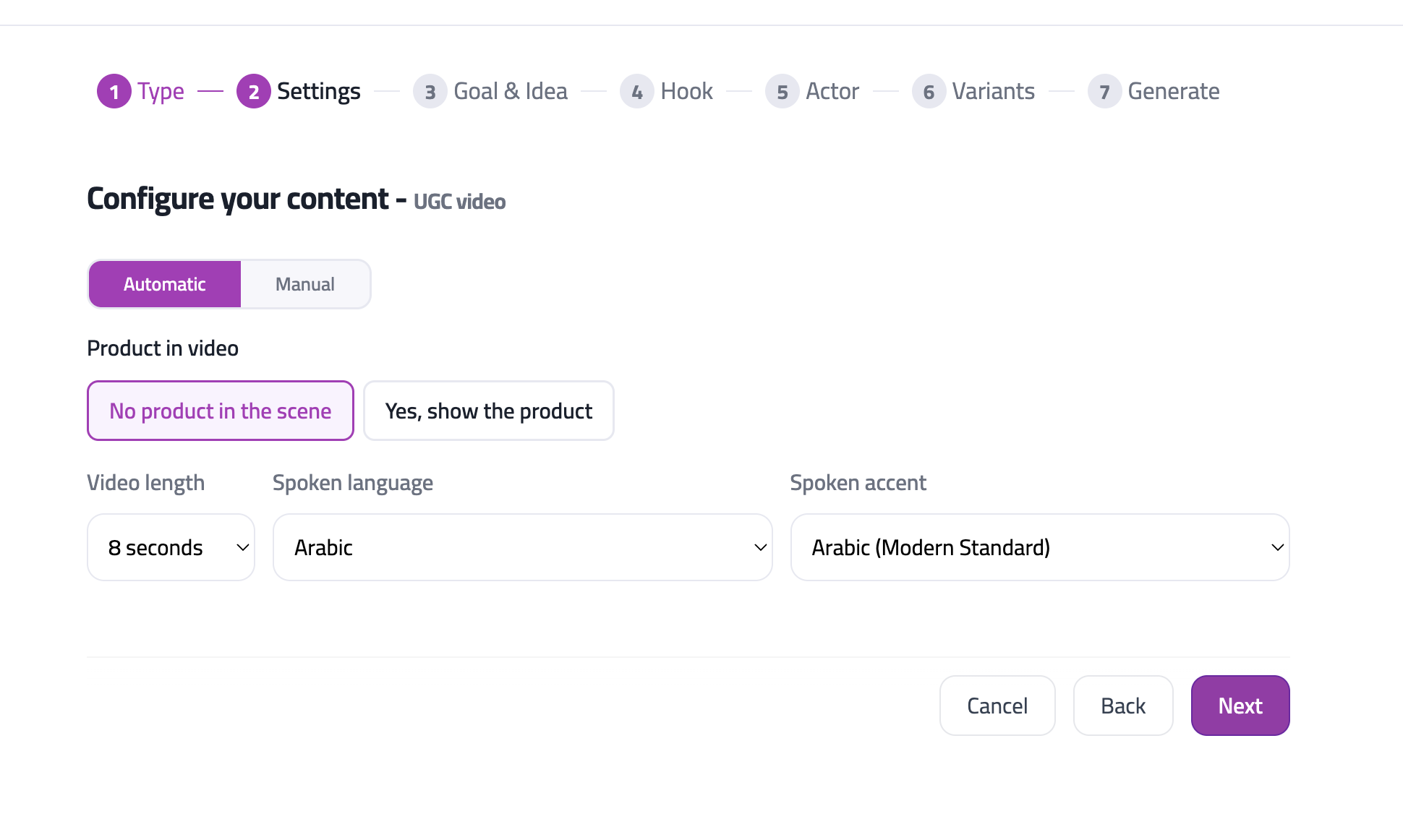
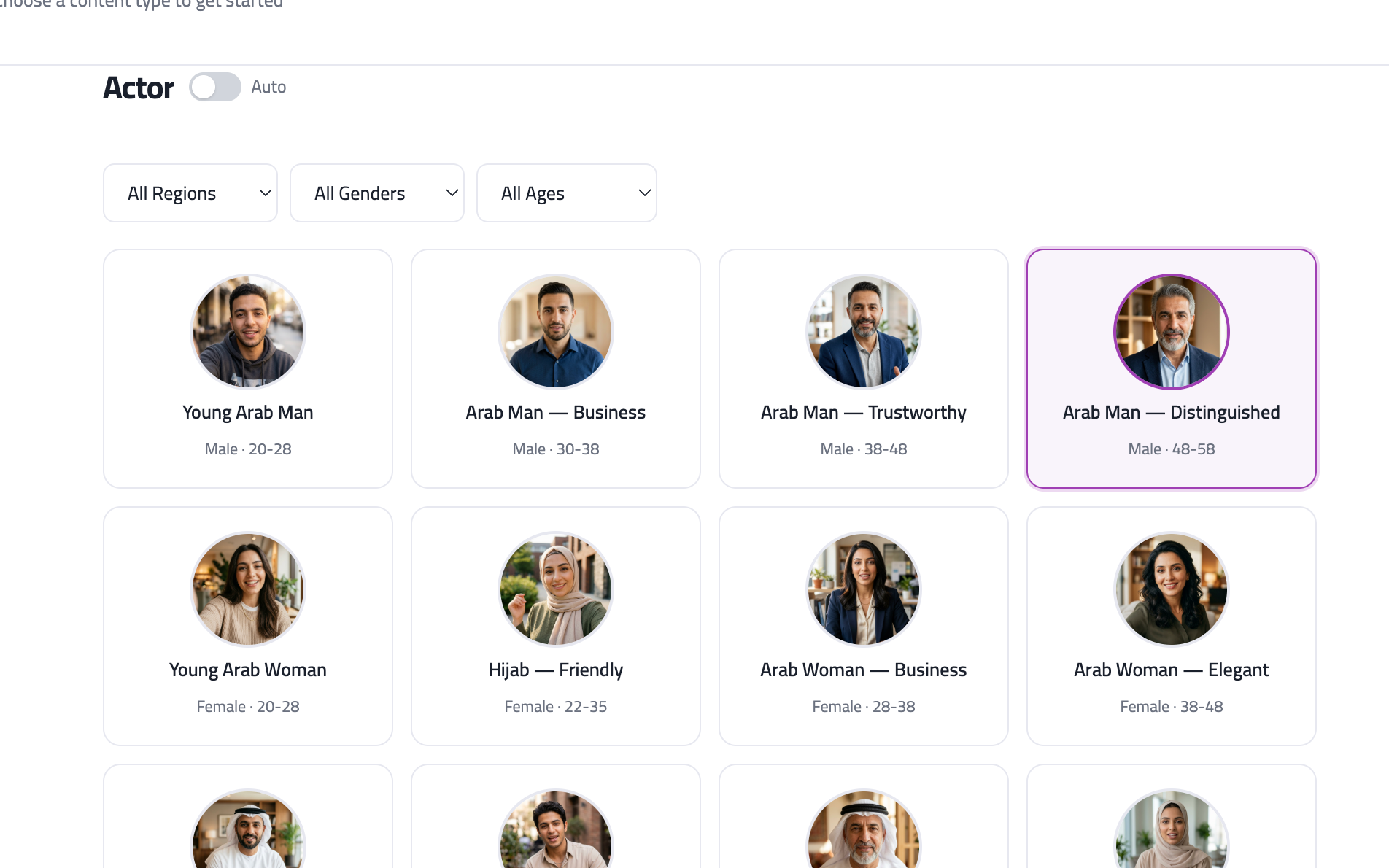
AI spokesperson ads that feel like real creator content. Choose a format, pick an actor persona (filter by region, gender, and age), set spoken language and accent, video length (8–32 seconds), quality tier, and whether the product appears on camera with an optional product upload.
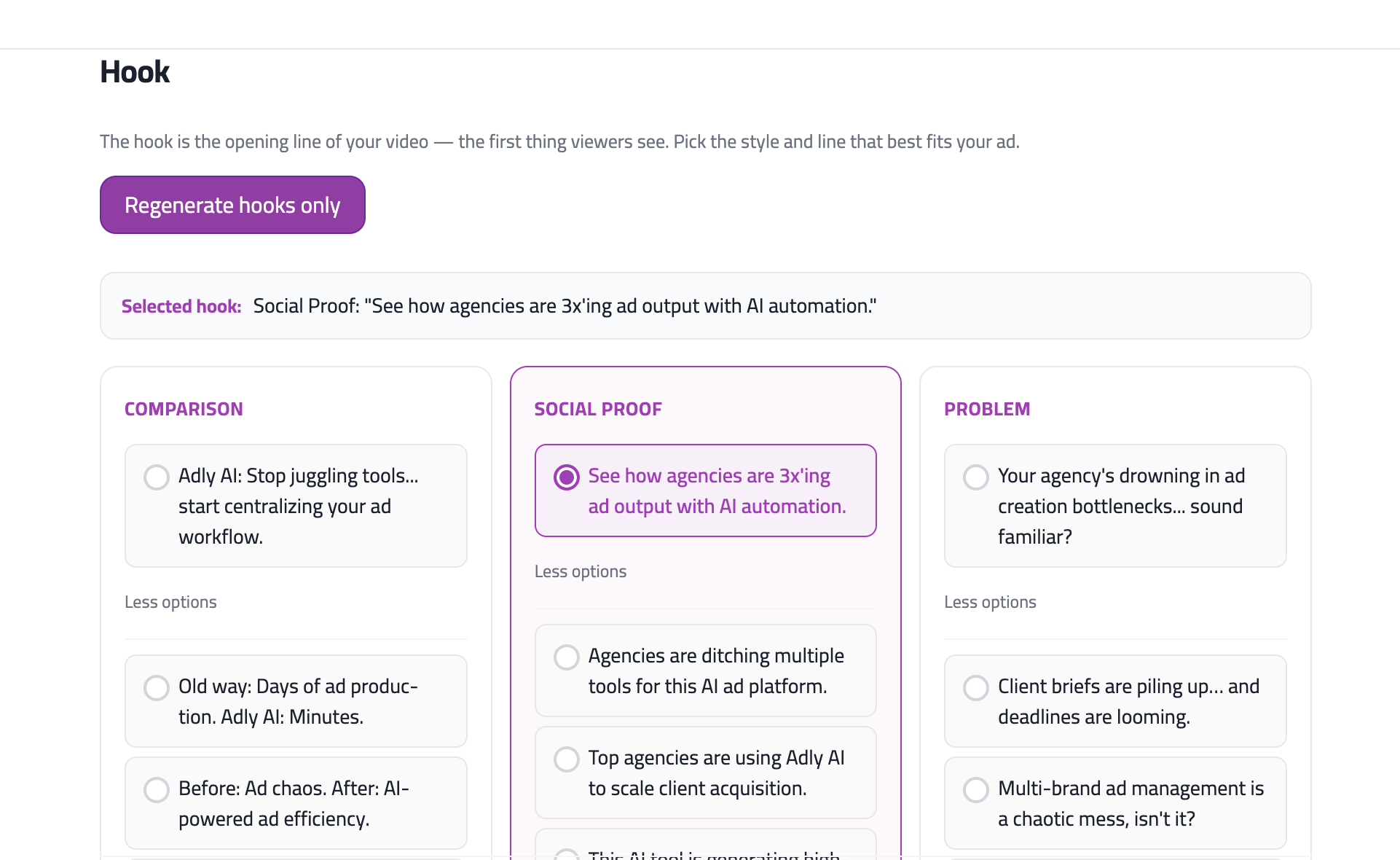
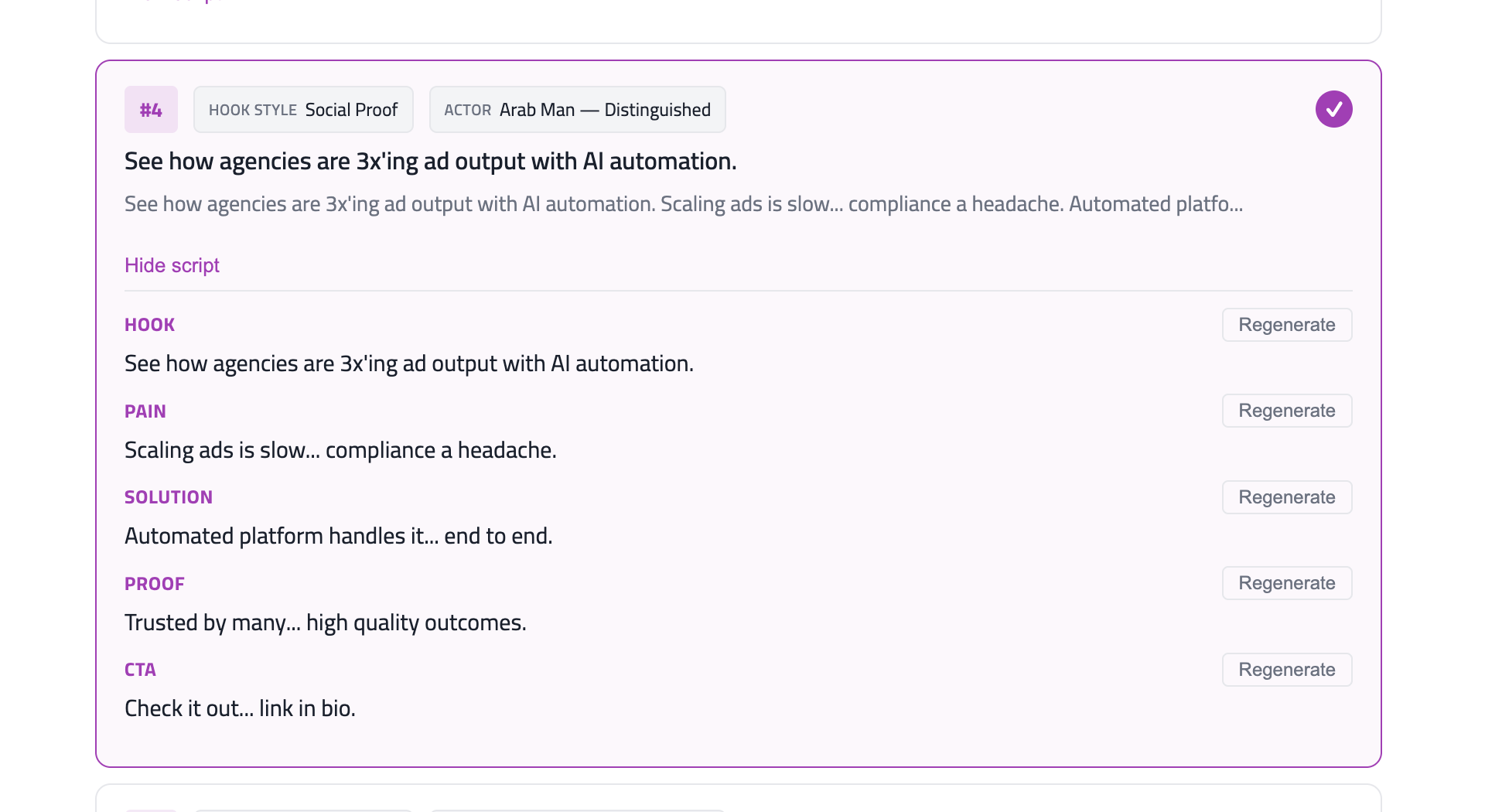
Walk through goal, audience, idea, and hook steps; Adly drafts script blocks (hook, pain, solution, proof, CTA) that you can regenerate section by section before final generation. Credits charge per 8-second segment by quality tier. Vertical 9:16 output — 1 video credit baseline per segment.
- Product images (required)
- Creative direction (optional but recommended)
- Language and accent selection (optional)
Scene Studio
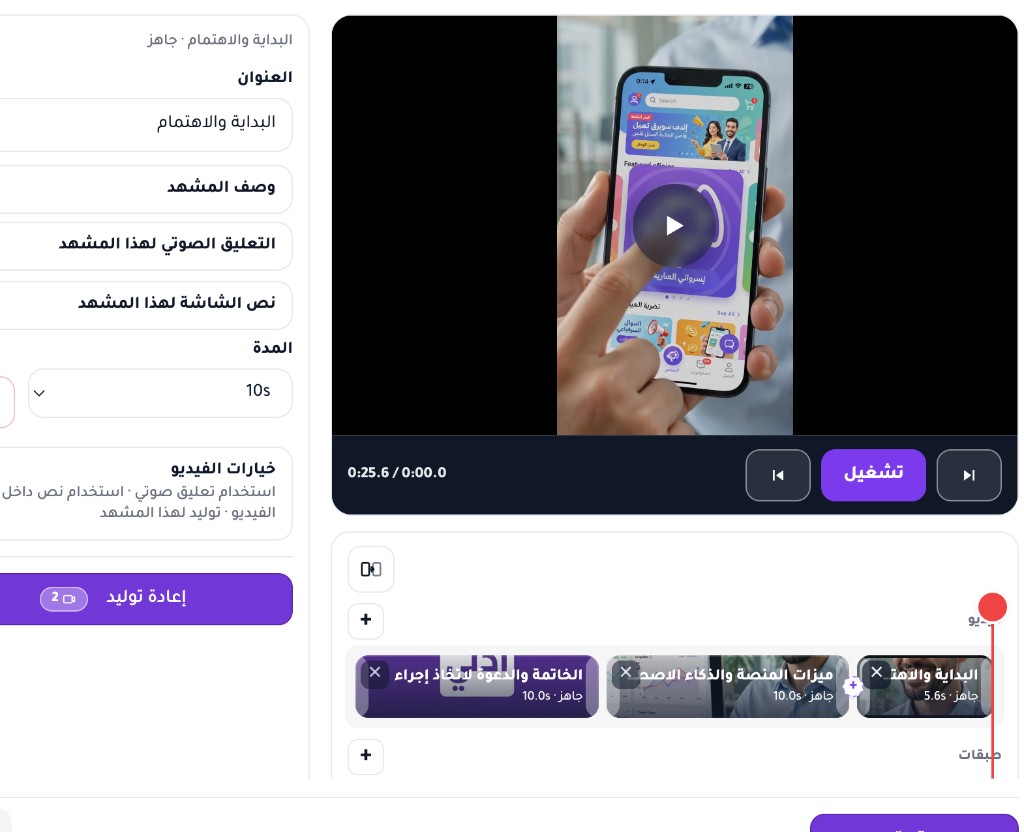
Multi-scene AI commercials up to about one minute. Auto plan writes 2–6 scenes toward your target total length, or Manual lets you enter Scene Creator and generate each scene yourself. Optional product image or start clip for grounding.
Set voice narration, on-screen text, music continuity, aspect (9:16 or 16:9), and quality. Each scene uses standard video credits for its length and quality; “from last scene” continuity charges 2× from scene 2 onward. Best when you need a hook → product → CTA story across several clips, not one short single-clip video.
- Commercial brief (Auto plan) or enter Scene Creator (Manual)
- Optional start image/video and video credits
Limitations: Up to 6 scenes; target total about 12–60 seconds. Export stitches ready scenes in Review.
Video from Image or Prompt
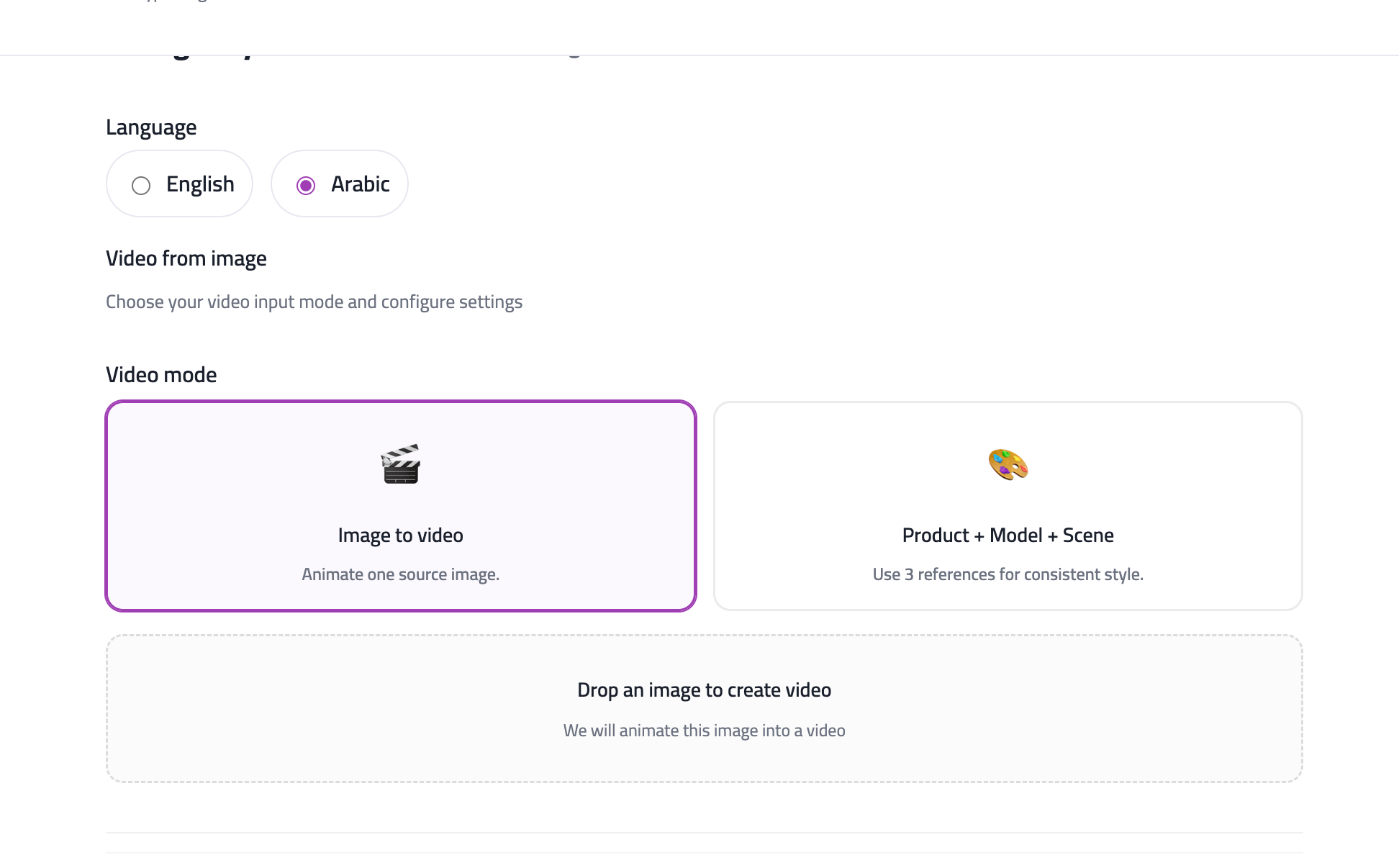
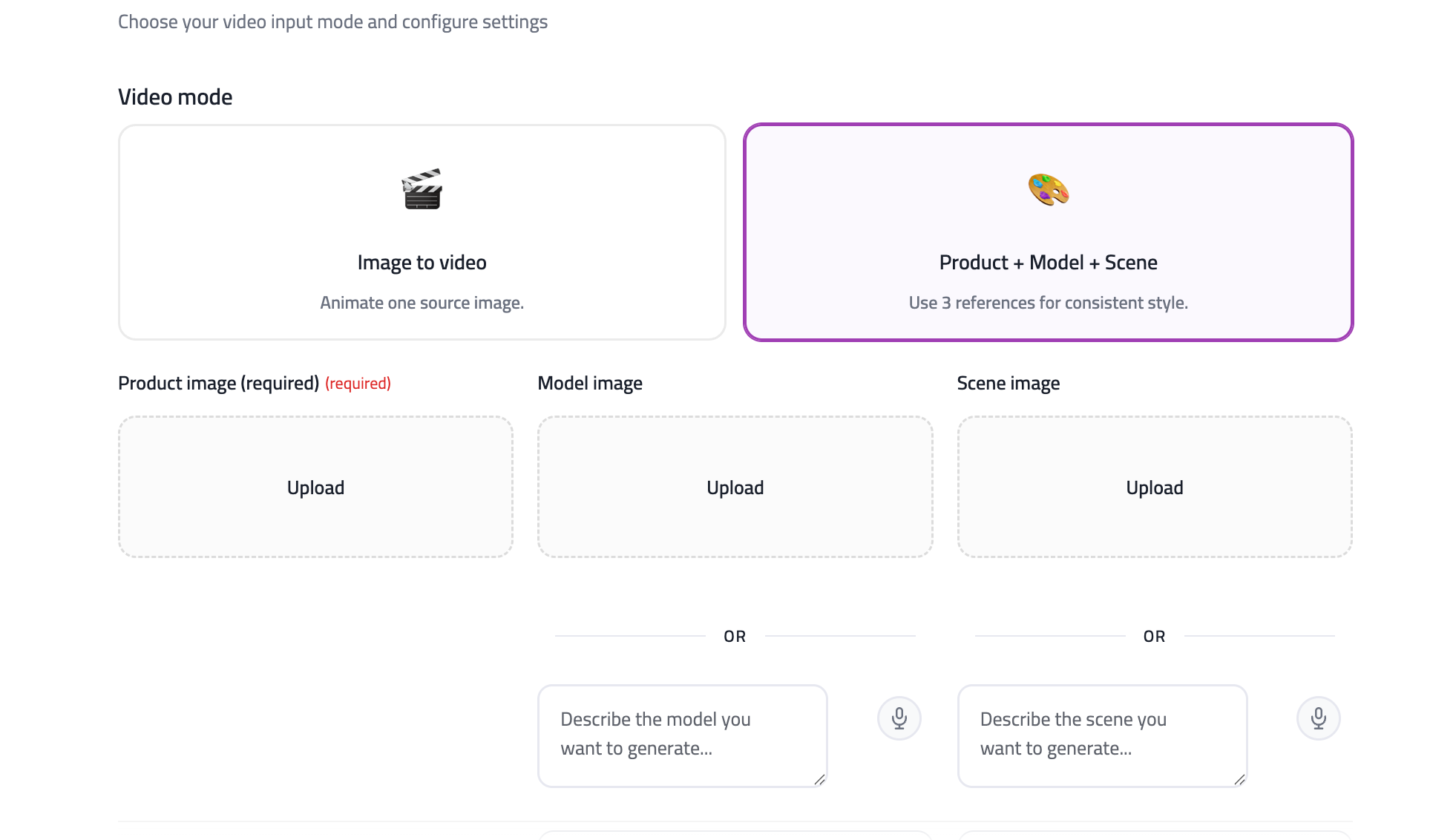
Short single-clip video. Choose Animate to add motion to an existing still, or Create new: Prompt only, From image, Product / actor / scene references, or From video to edit a short source clip.
Animate supports 5/10/15s with resolution and style. Create new supports longer lengths (mode-dependent), Reel 9:16 or 16:9, quality tiers, and optional voice or on-screen text on clips up to 10s. For multi-scene ads up to ~60s, use Scene Studio instead. Credits scale with length and quality.
- Video prompt and/or source image(s); From video needs a source clip
- For references: product, actor (model), and/or scene images in order
Limitations: Single clip. Animate keeps the exact frame; Create new can invent new shots. From-video edits are limited to a 10s source span.
Talking Characters
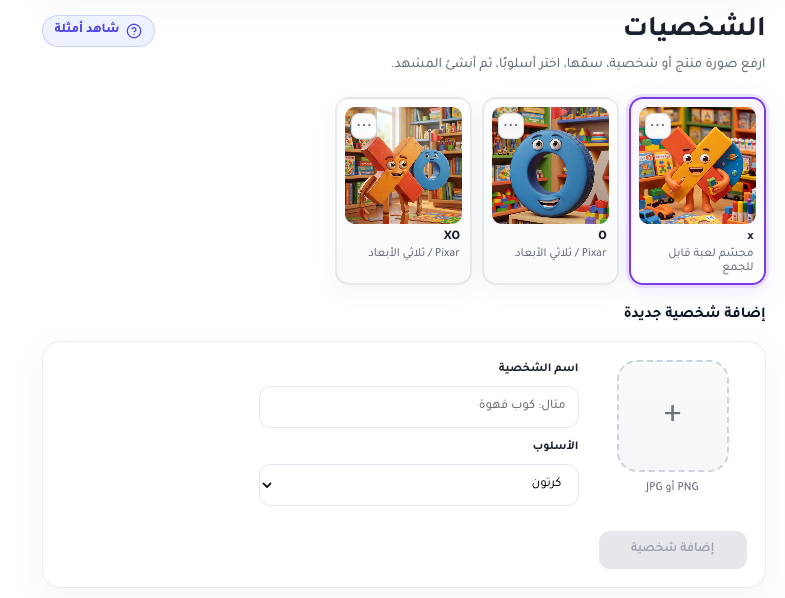
Products and objects that talk about themselves in a vertical video. Build characters from reference images with names and styles, then assign one character per 8-second scene — up to five scenes for 8–40 seconds total.
Auto mode writes in-character lines; manual mode lets you write each line yourself. Pick language, accent, and video quality the same way as UGC. Credits use the same per-8-second-segment model. Great for playful food, packaging, and mascot-style ads.
- At least one character with name and source image
- One character per scene (same character can appear in multiple scenes)
- Language, accent, and video quality settings
- Same video credit pricing as UGC (per 8-second segment, quality tier applies)
Animated Video Ad
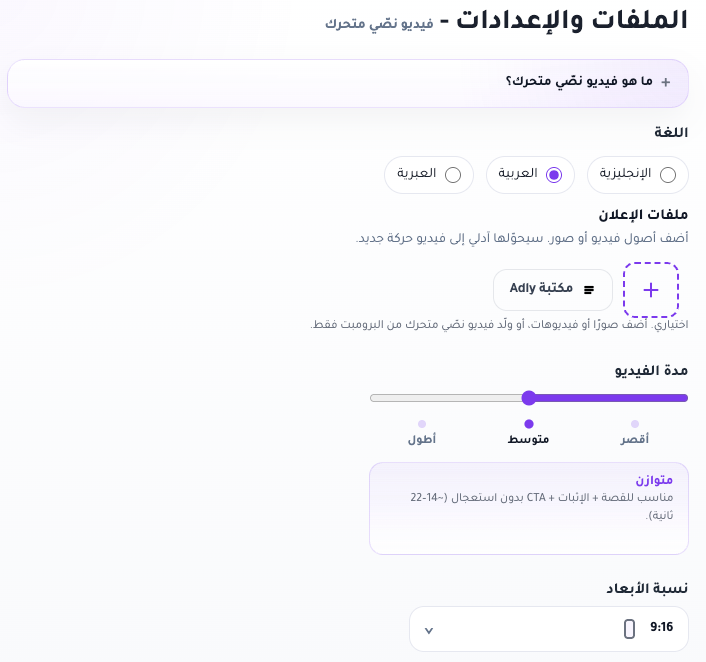
Motion graphics ads built from your prompt and optional product images — no live filming. Write a scene prompt or tap Generate ideas, then review and edit the scene breakdown before approving the plan.
On the Files and settings step, pick language, optional ad images or videos (or prompt-only), length pace (shorter, medium, longer), and aspect ratio. Add voiceover dialect and optional fitting music on the breakdown step — you must approve the plan before create. Credits scale with approved duration (~1 credit per 7 seconds).
- Creative direction and optional product images
- Duration and format settings
Director Mode
Full control for advanced video: enter an idea and generate a director prompt, or write the prompt manually. Attach first/last frame anchors or reference images (mutually exclusive), then set aspect ratio, length (4–15 seconds), and resolution.
Optional advanced fields include reference video/audio URLs and web search. Uses 5× standard video credit pricing (~1 credit per 8 seconds × 5). Best when you need a specific shot, motion, or mood that simpler video modes cannot hit.
- Shot plan with frames and/or reference assets
- Language, quality, and output settings
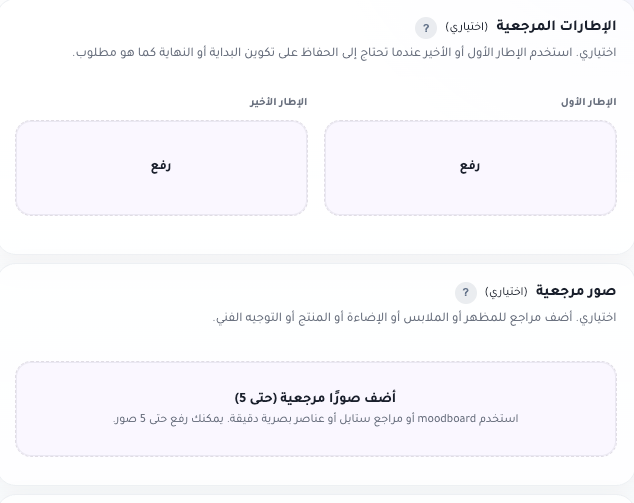
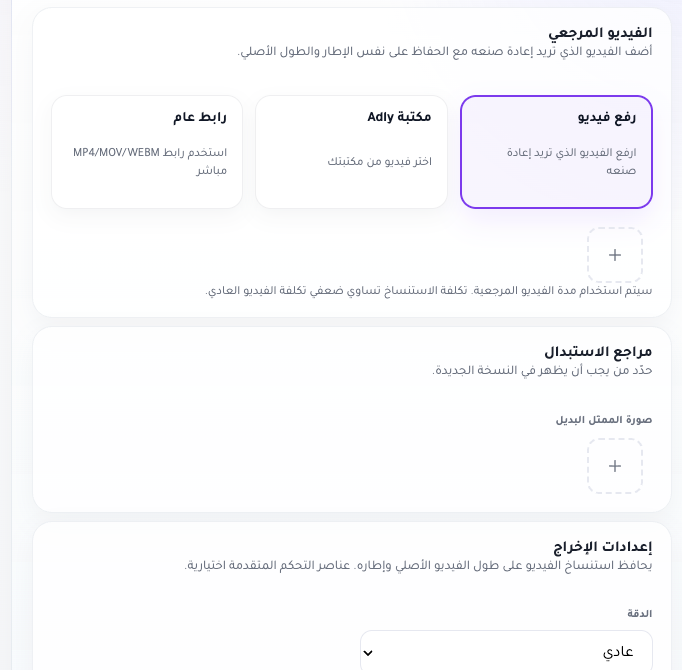
Clone Video
Remake an existing clip with a new actor or product while keeping the original motion and structure. Upload, pick from Adly library, or paste a public URL for the source video; upload a replacement actor image (required).
Add a required Remake prompt describing what should change, pick resolution, and optionally enable Keep camera style. Credits scale with source duration (~1 credit per 8 seconds × 3). Ideal for swapping the face or product in a proven ad format.
- Source video clip (required)
- New actor and/or product references
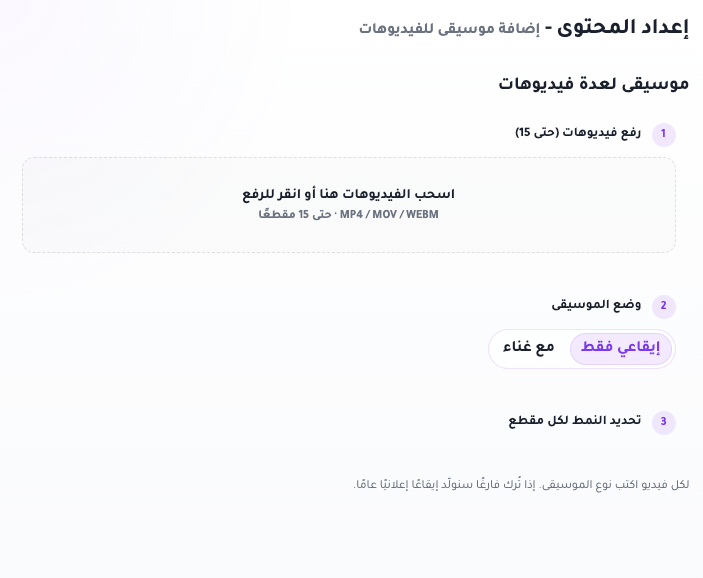
Add Music
Add generated background music to existing clips — upload up to 15 videos from your device or Adly library. Choose Instrumental only or Vocal mode and optionally set a style prompt per clip.
Skips the style wizard; everything is configured on the content step. Each uploaded clip costs 1 video credit. Output is the same footage with new music matched to your chosen style — useful for turning silent UGC or product clips into finished social posts.
- One or more source clips from your library or uploads
- Music style or vocal direction
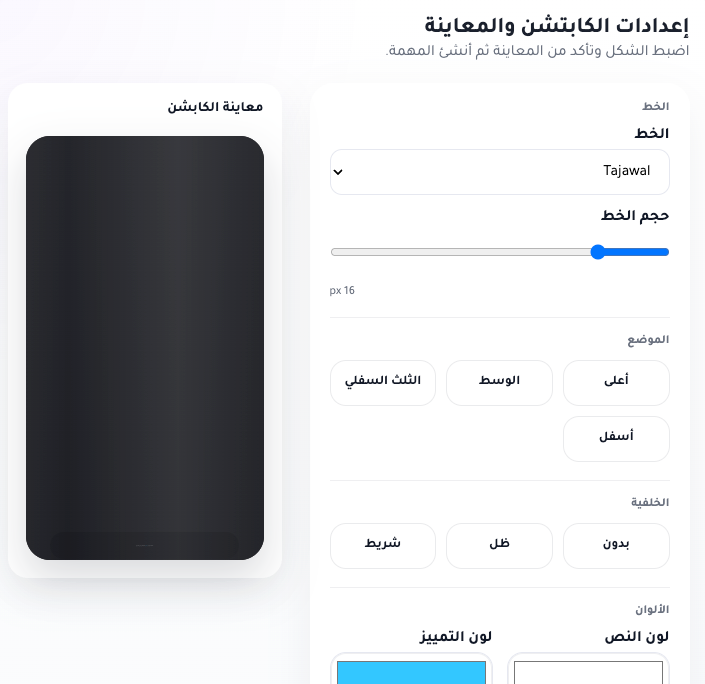
Add Captions to Videos
Burn styled, highlighted captions into an existing video for Reels, TikTok, and paid social. Upload a file, paste a public URL, or pick from Adly library — source video is required.
Customize font, size, position, colors, highlight style, and background with a live caption preview on the style step. No creative brief — 1 video credit per run. Use after UGC or product videos when you need readable on-screen text.
- Source video file (required)
- Caption language and style preferences
Brand & Publishing workflows
Ad Copy
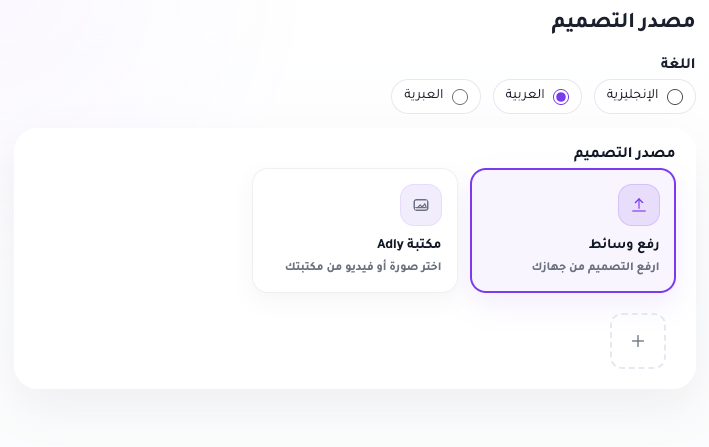
Generate post text and ad captions for a finished creative — image or video from upload or Adly library. The wizard stops after source selection; there is no design or style step.
When the source is a video, pick the video language so copy matches the spoken content. Adly writes on-brand caption and post text for your selected creative — 1 text credit per run. Use when the visual is done and you need copy for publishing or ads.
- Finished creative from library or upload
Agency Modes
Multi-Brand jobs on Growth and agency plans: in General Design, enable Multi-brand jobs on step 3 to run one announcement brief across multiple selected brands — each brand gets its own adapted output while sharing the same messaging framework.
Track and manage batches from Multi brand jobs in the sidebar. From template mode disables multi-brand selection. Brand Asset packs for agency operations are handled outside the standard create picker — available on eligible agency accounts.
Screenshot: Multi-Brand selection and batch output results
Features
Design Editing
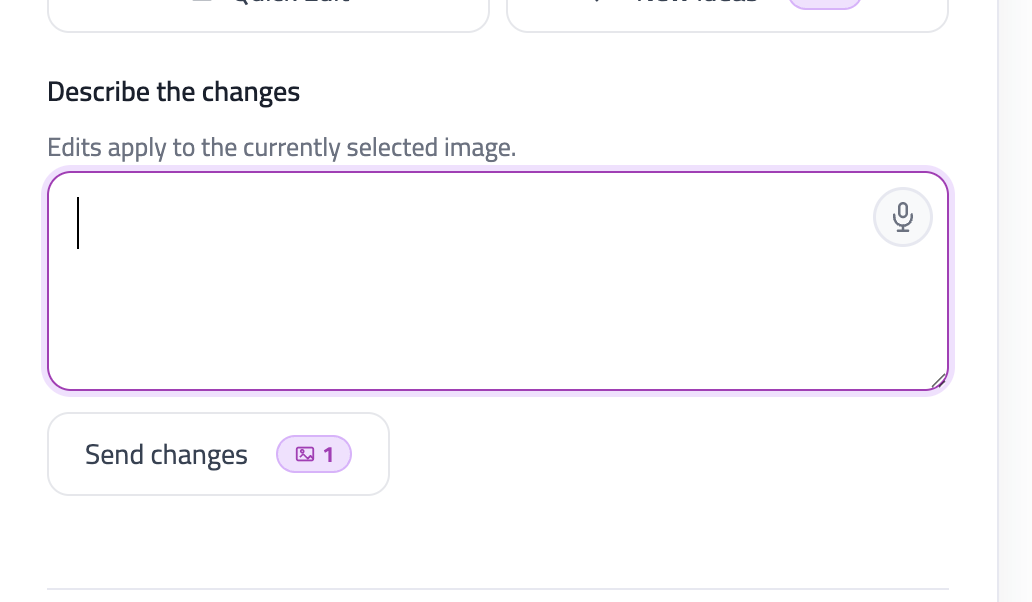
After a design is generated, request changes in plain language from the job view — describe what to change and Adly regenerates the selected image with your edits.
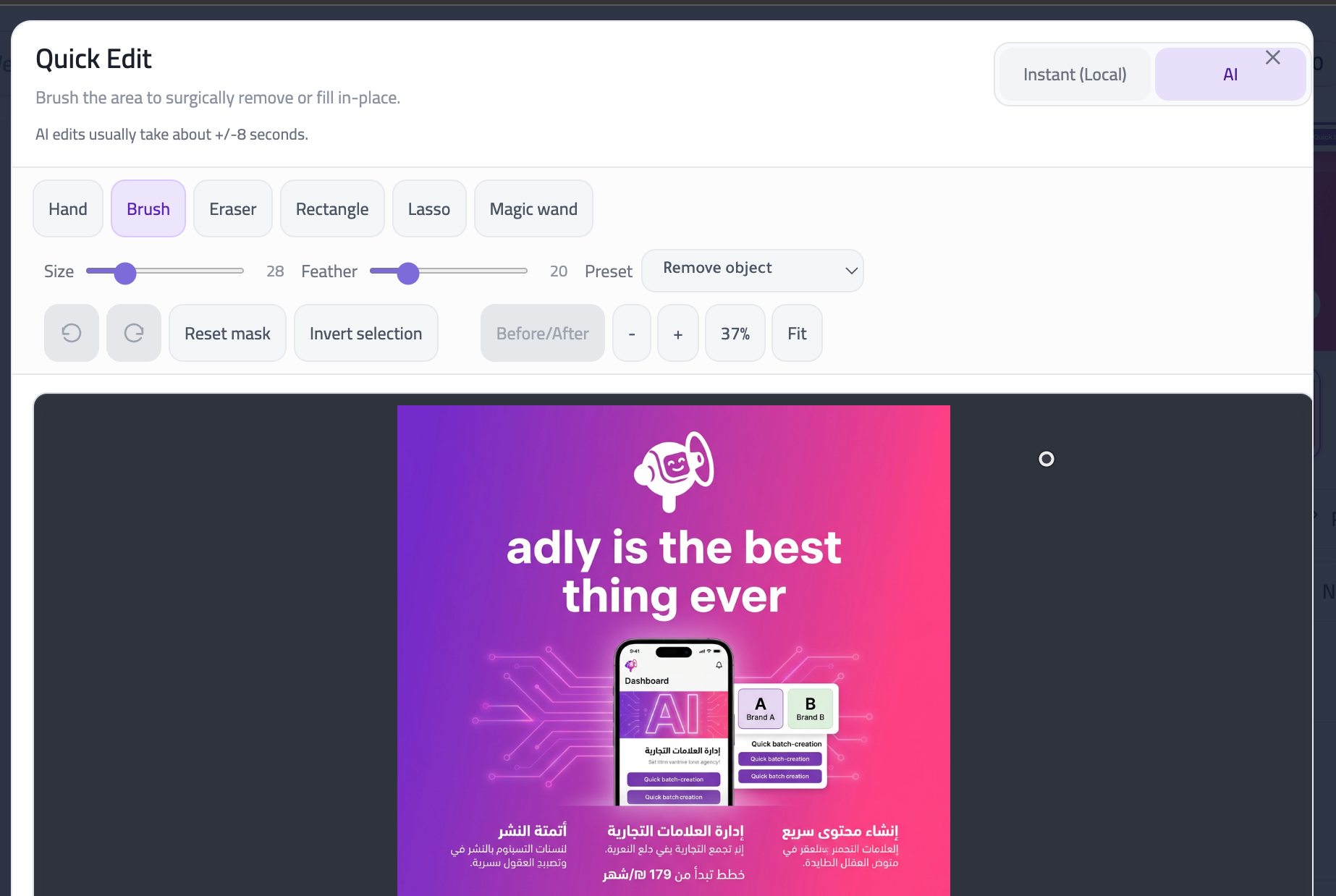
Open Quick Edit for Instant (Local) brush, fill, clone, and color tools, or switch to AI mode for mask-based remove/replace. Browse all variations as thumbnails. Be specific — “remove the phone number” works better than “make it better.”
- Remove or modify text elements
- Change colors, layouts, or styling
- Add or remove specific elements
- View all design variations as thumbnails

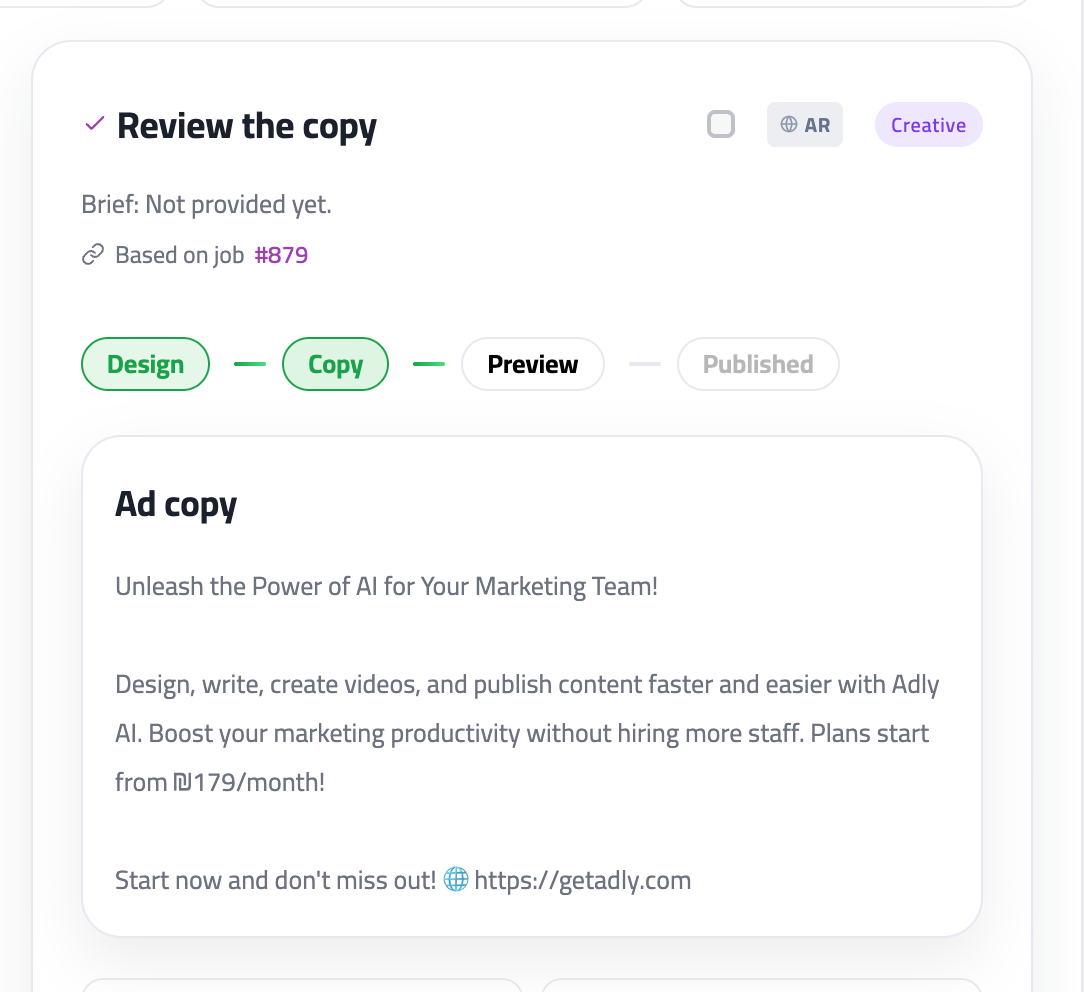
Ad Copy Generation
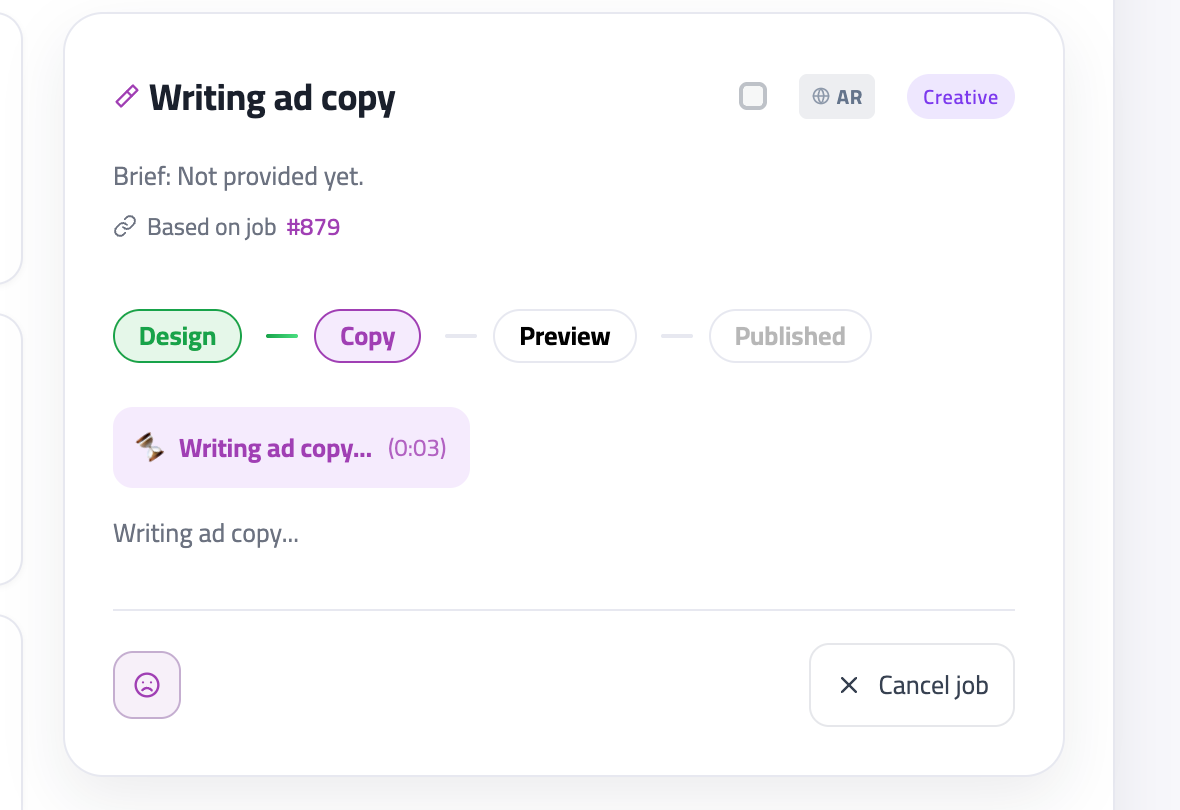
After image jobs finish, Adly can write matching post text in the Copy step — headlines, body, and CTA aligned to the design and your brand voice.
Review multiple variations, edit inline, and pick language (English or Arabic) before publishing. You can also start a standalone Ad Copy job from Create when you already have a finished image or video. Uses text credits.
- Multiple copy variations
- Language selection (English, Arabic)
- Edit and refine generated copy
Social Media Publishing
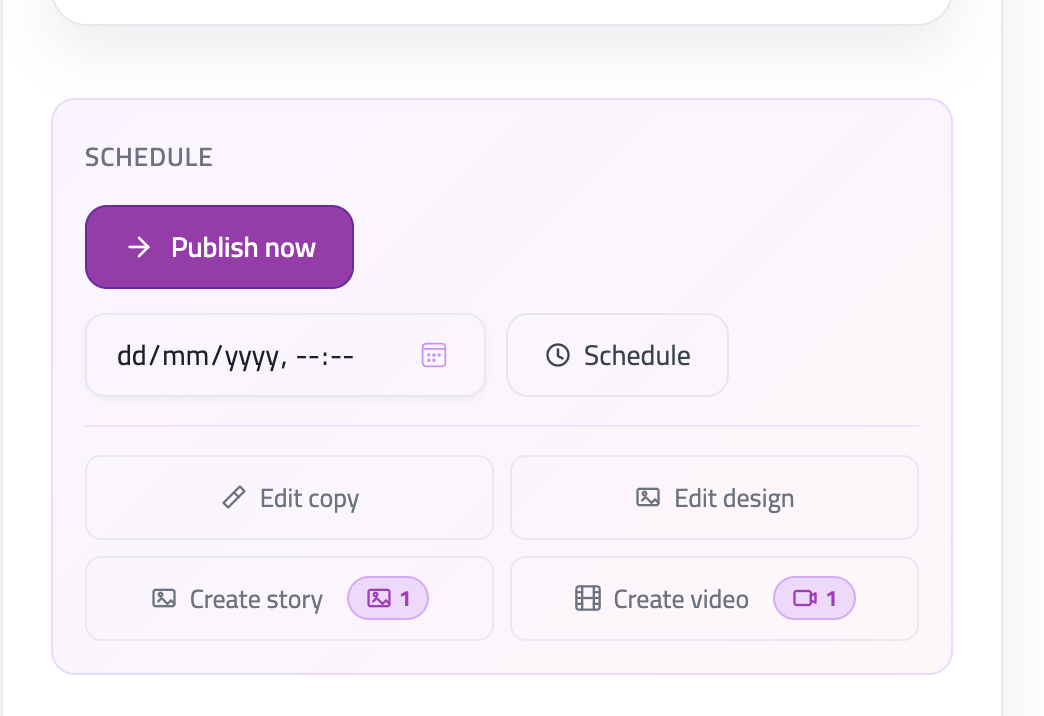
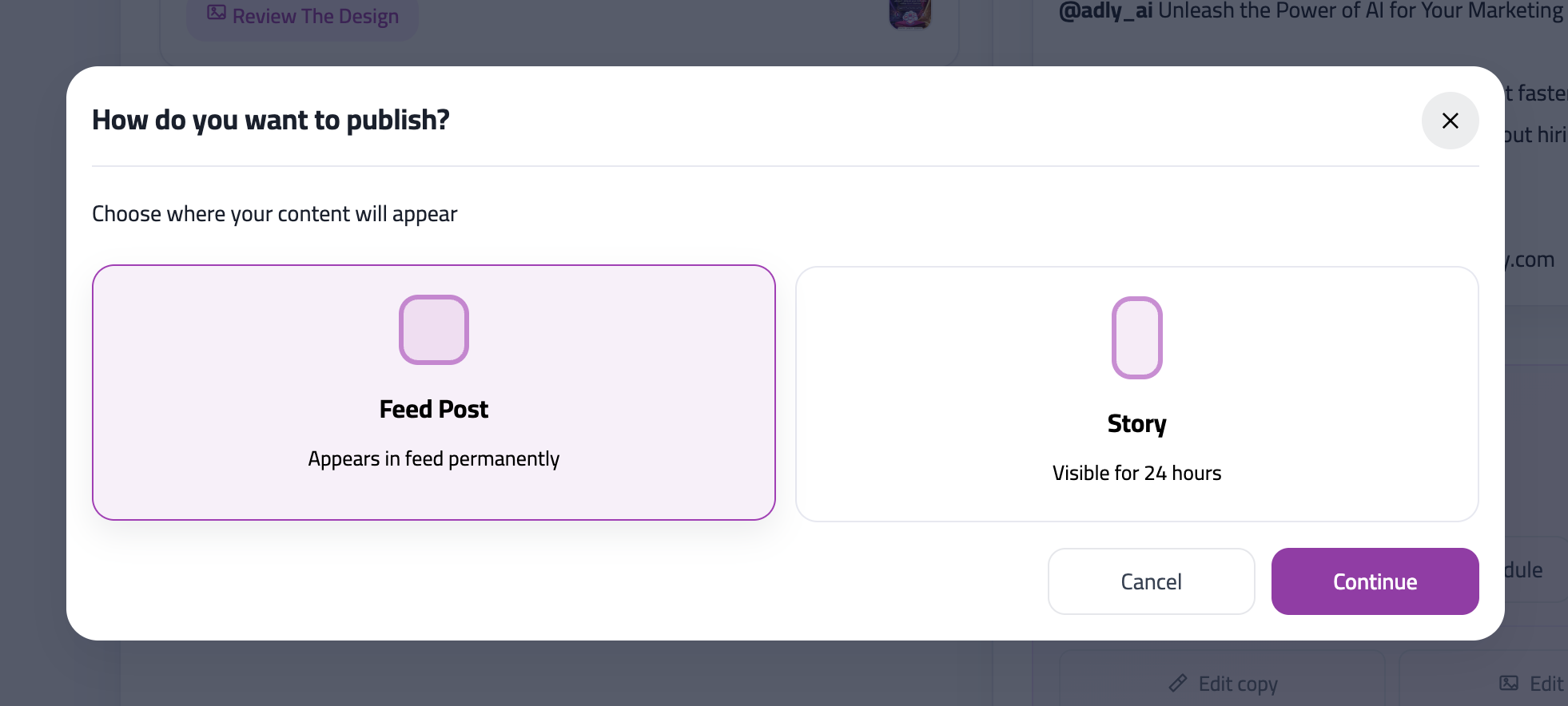
Publish approved designs to Facebook and Instagram from the job, calendar, or posts view. Connect Meta once in Profile → Integrations, then choose Feed post or Story and publish now or schedule.
Works with single images and carousels. If Meta is not connected, you see the connect prompt — not error stacks. Partial connections show per-platform guidance. Published post links are saved on the job for reference.
- Connect Facebook and Instagram accounts
- Publish single images or carousels
- Schedule posts (coming soon)
- View published post links
Brand Library
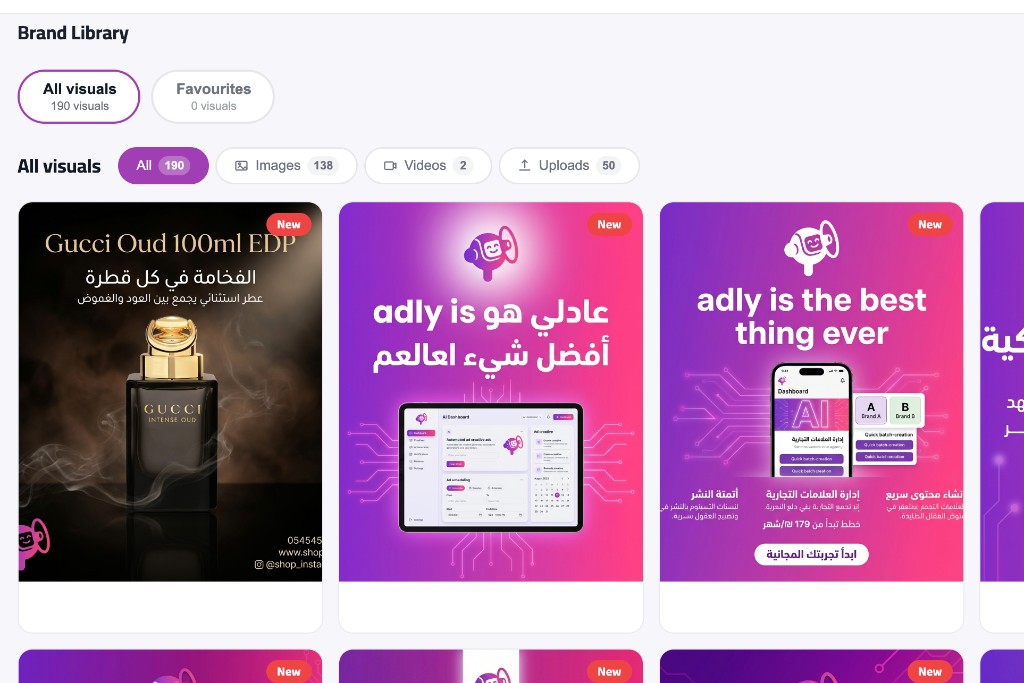
Every generated design, upload, and video for the brand lives in Brand Library — filter by all assets, images, videos, or uploads and reuse visuals in create flows via Adly library pickers.
Download assets individually or in bulk, search and filter the grid, and pull saved work into Create From Image, video modes, Ad Copy, and other jobs without re-uploading.
- View all generated designs
- Upload and manage product images
- Download assets in bulk
- Search and filter your library
Business Cards
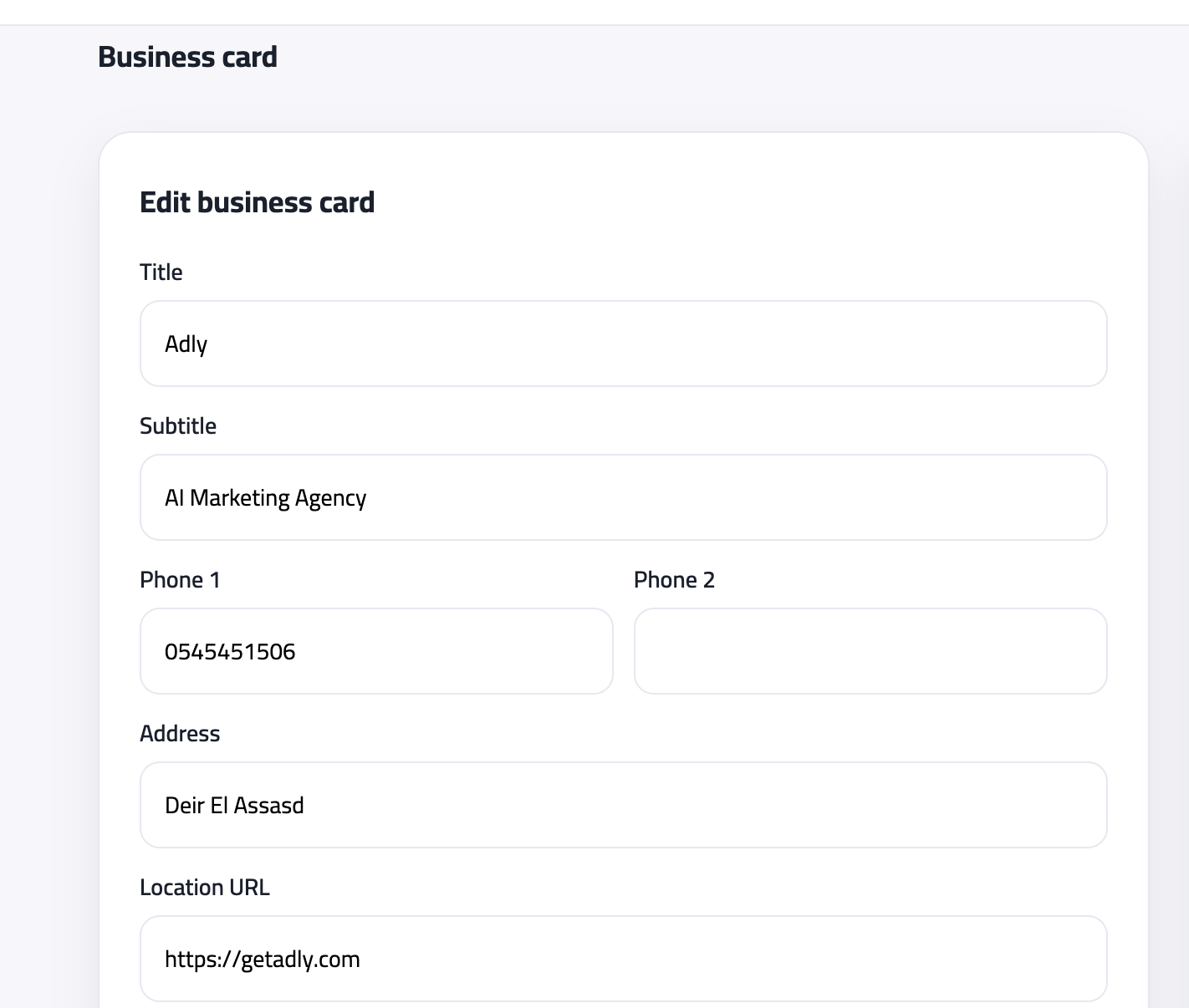
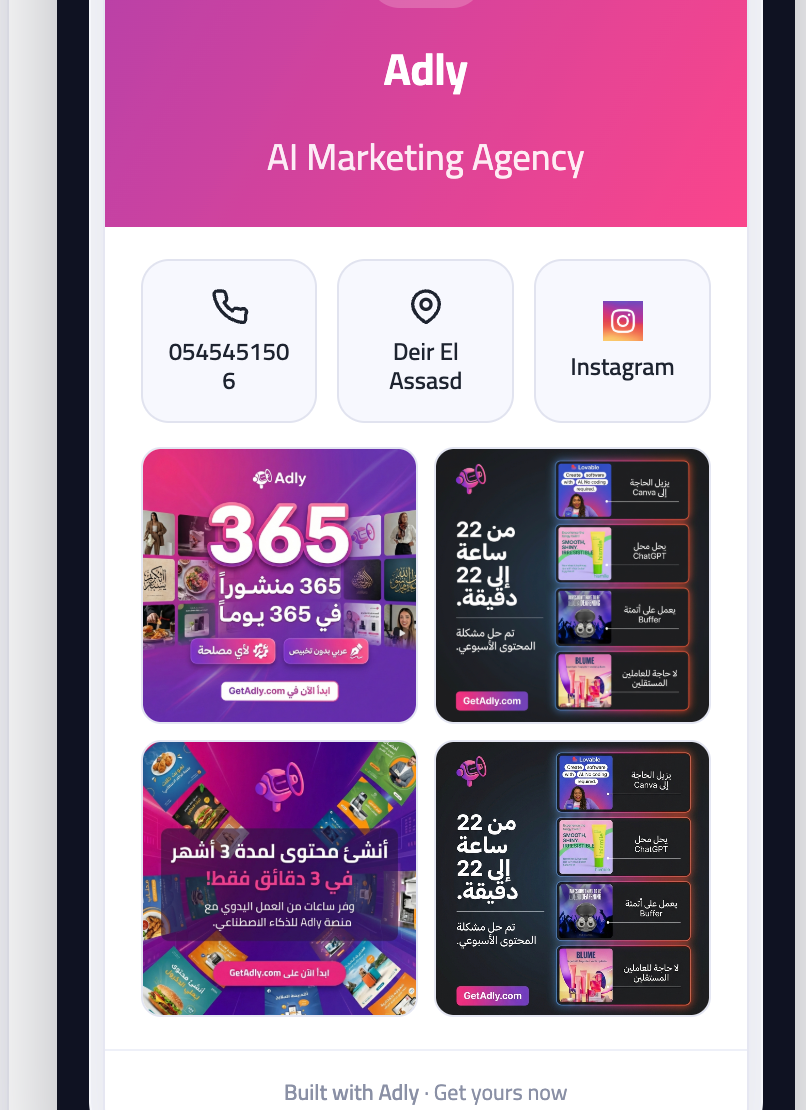
Generate a mobile-friendly branded business card from Create → Brand & Publishing or the Business card page. Fill title, subtitle, phones, address, location URL, and other contact fields — logo is required for preview.
Review the live preview, iterate on copy and layout, then share or publish. Multiple design variations are available. Uses landing-page credits on generation.
- Logo required for preview
- Custom contact information
- Multiple design variations
- Download print-ready files
Stores and landing pages
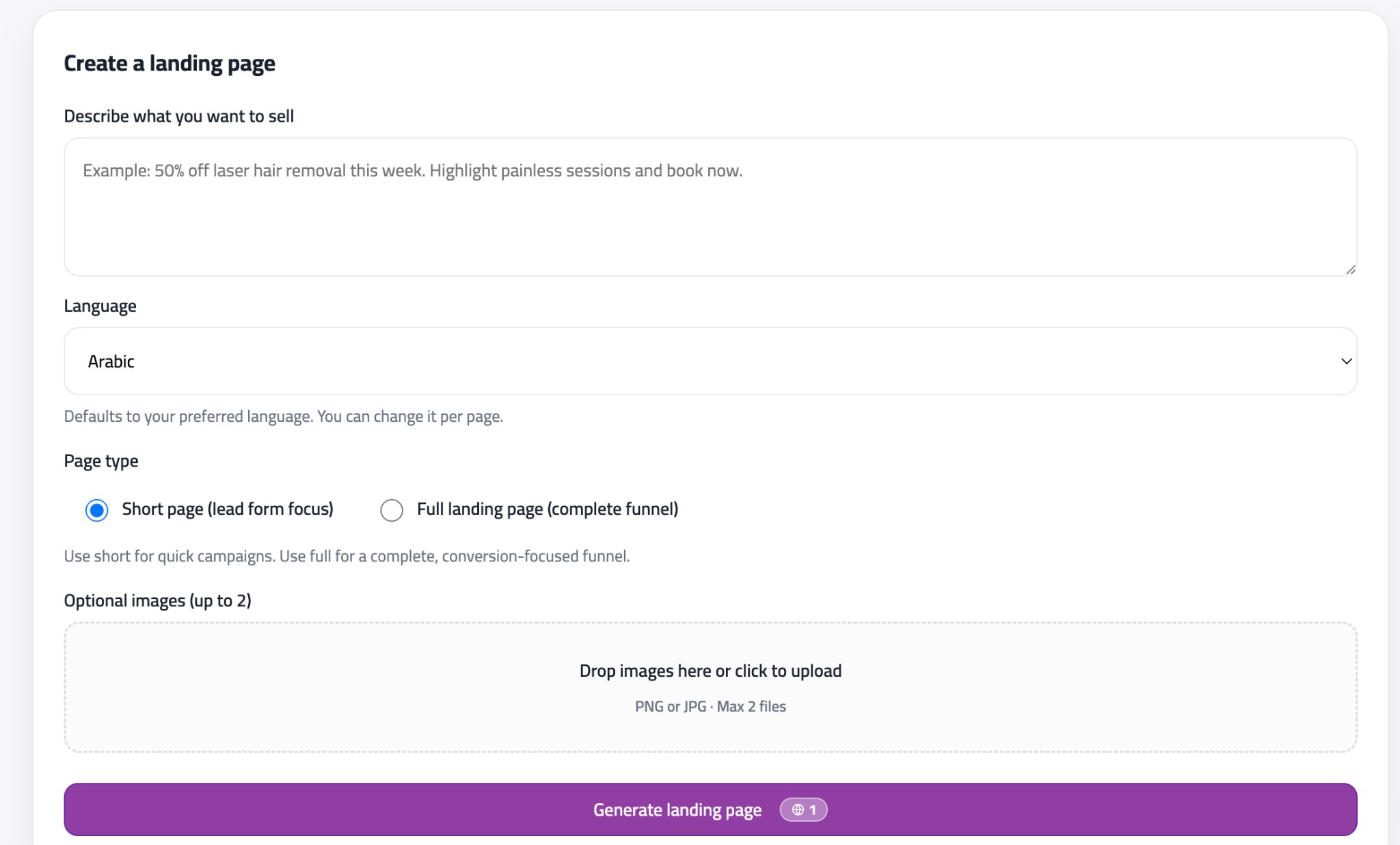
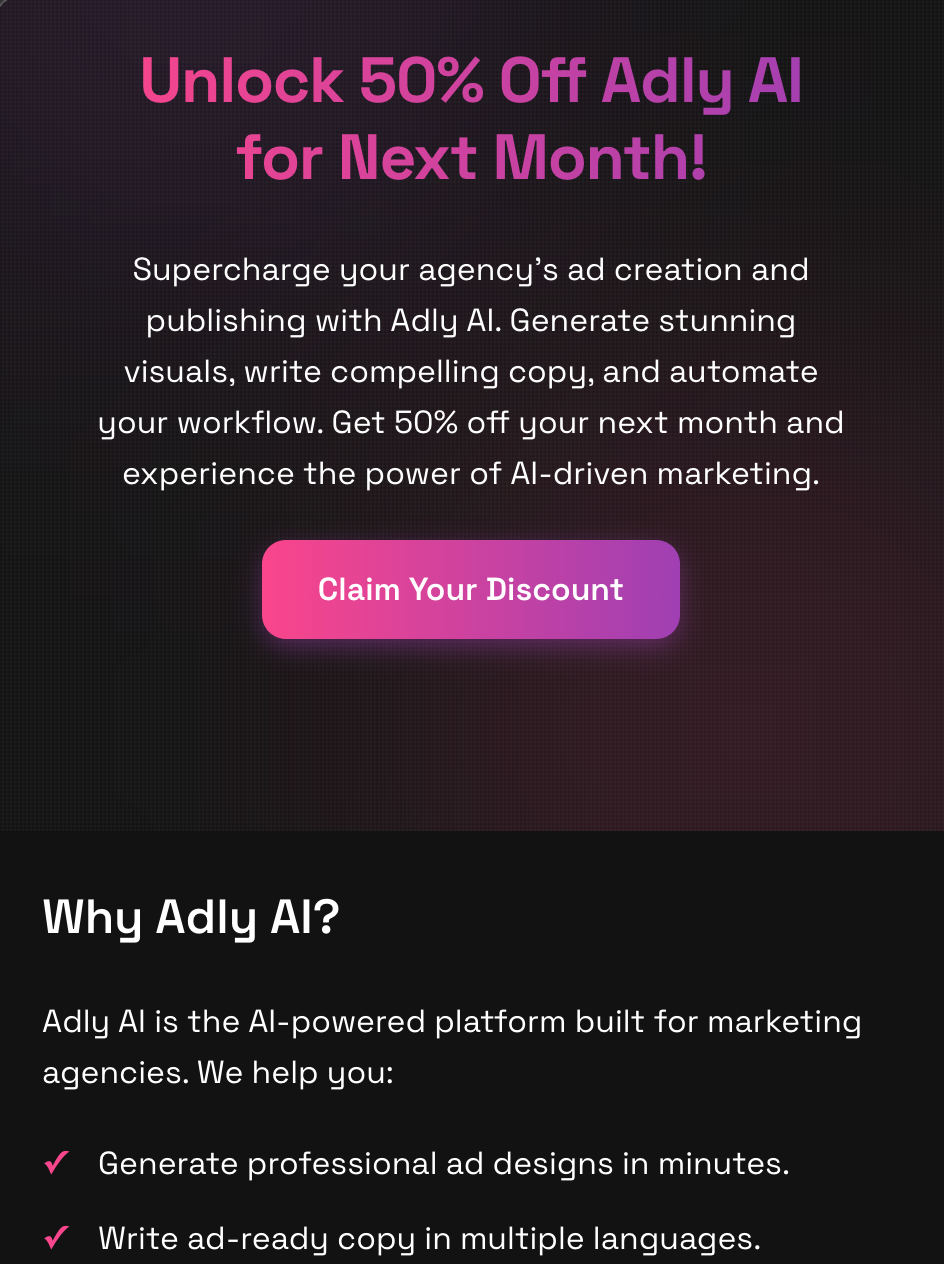
Build campaign landing pages and mini-stores from Create or Landing pages — describe your offer, pick language and page type, and optionally attach images. Enable Act as shop to let visitors add products to a cart with variants and quantity.
Choose lead form capture, WhatsApp-only conversion, or both; switch modes after publishing. Shop orders include line items, subtotal, and total in Leads and order emails. Uses landing page credits — 1 per generated page.
- AI-generated page structure
- Customizable content sections
- Lead capture forms with saved templates
- View leads and shop orders in Leads
- Act as shop — cart, variants, quantity, and order summary
- Lead form or WhatsApp-only conversion modes
- Switch between lead form and WhatsApp after publishing
- Shop order emails with line items, subtotal, and total
Leads & Orders
Form submissions from landing pages and shop orders from Act as shop pages land in Leads & Orders for that brand — one inbox for contacts, quote requests, and checkout leads.
Search, filter, and open lead details including shop line items. Get email notifications for new leads and orders, import CSV when migrating, and reply on WhatsApp when a phone number is present.
- View form submissions and shop orders in one inbox
- Search, filter, and open lead details including order line items
- Get email notifications for new leads and shop orders
- Import leads from CSV when migrating from another platform
- Reply on WhatsApp when a phone number is available
Tasks
Track publishing follow-ups, client approvals, and internal to-dos with due dates and email reminders — available on Launch plan and above from the sidebar Tasks page.
Create tasks manually or from Autopilot suggestions on WhatsApp. Organize what to publish, approve, or send next without losing work in chat threads.
- Create tasks from the sidebar or from Autopilot suggestions
- Set due dates and receive email reminders
- Organize publishing, approvals, and client follow-ups in one list
Content Planning
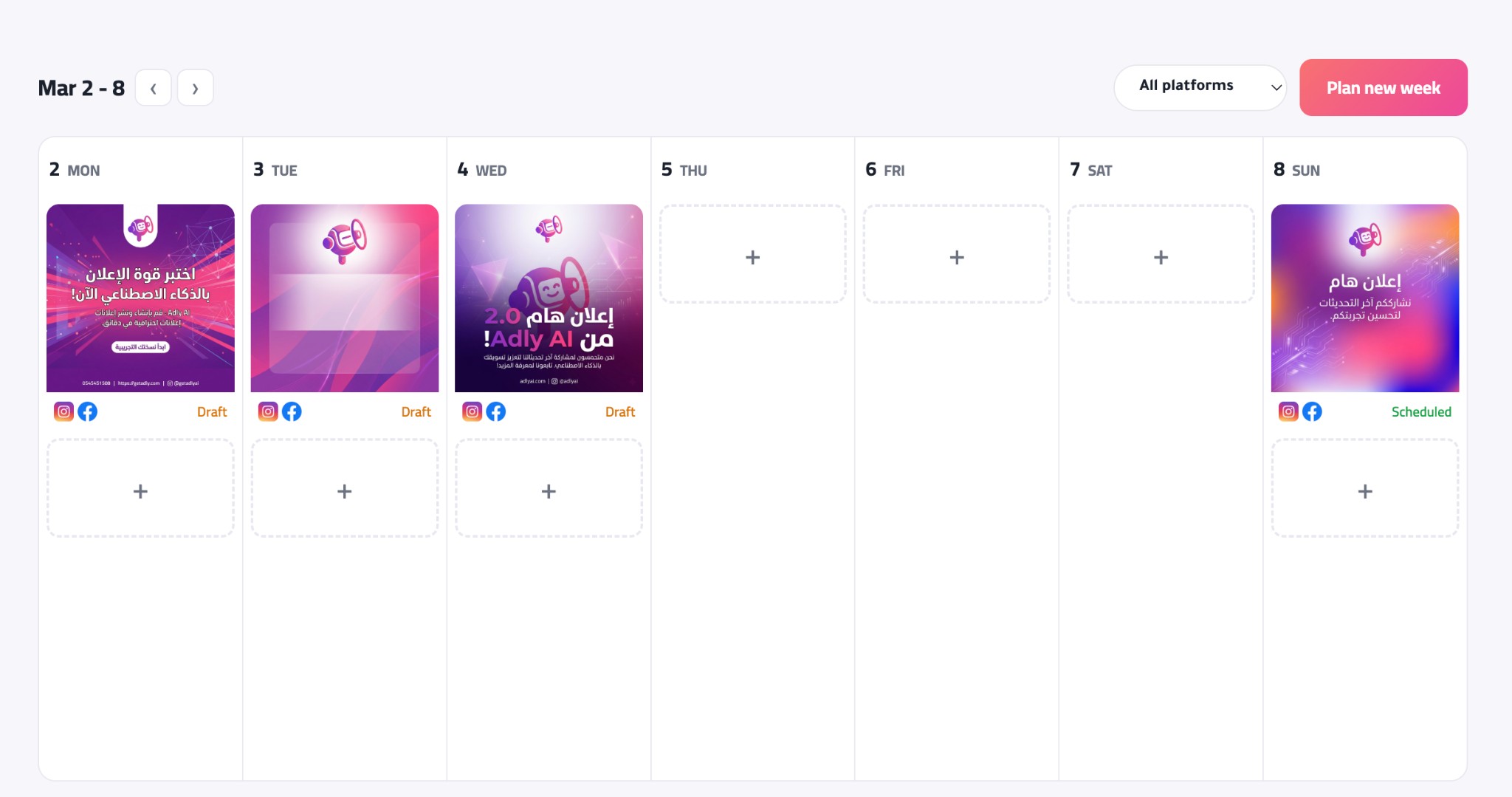
Idea Generator and Content plan help you map a month of posts — AI suggests ideas based on your brand, audience, and goals, then you draft or schedule them on the calendar.
Open from Create → Brand & Publishing or the sidebar Idea Generator link. Weekly calendar view shows planned and scheduled posts; turn ideas into jobs without starting from a blank brief.
- Monthly content calendar
- AI-suggested post ideas
- Export to calendar apps
Meta Ads
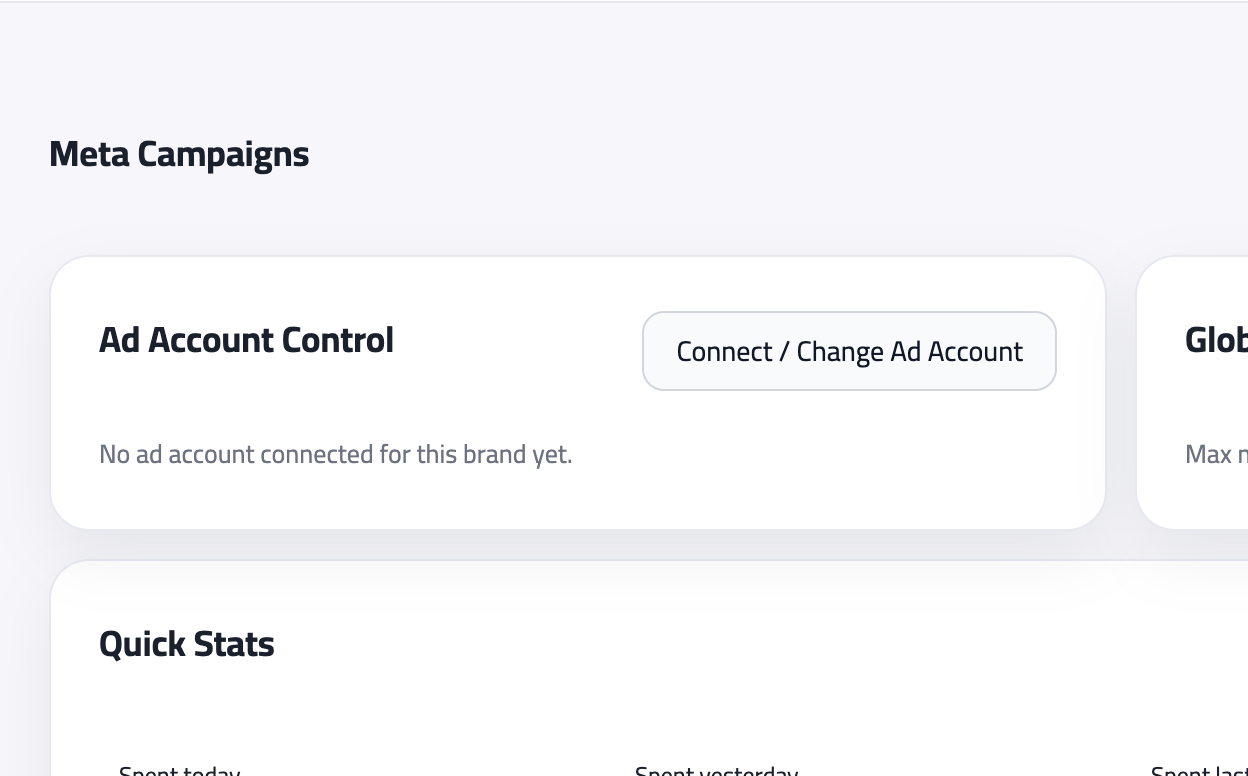
Launch paid Facebook and Instagram campaigns from Meta Campaigns — connect your ad account, pick placement-ready formats, and reuse approved Adly designs and copy.
Align campaign objective, message, and creative before going live. Dashboard shows connected account status and quick stats. Open from Create → Ads & Marketing or the Meta Campaigns page.
- Connect Meta assets and choose placement-ready formats
- Reuse approved designs and copy for faster campaign setup
- Align objective, message, and creative before publishing live ads
Inspiration Library
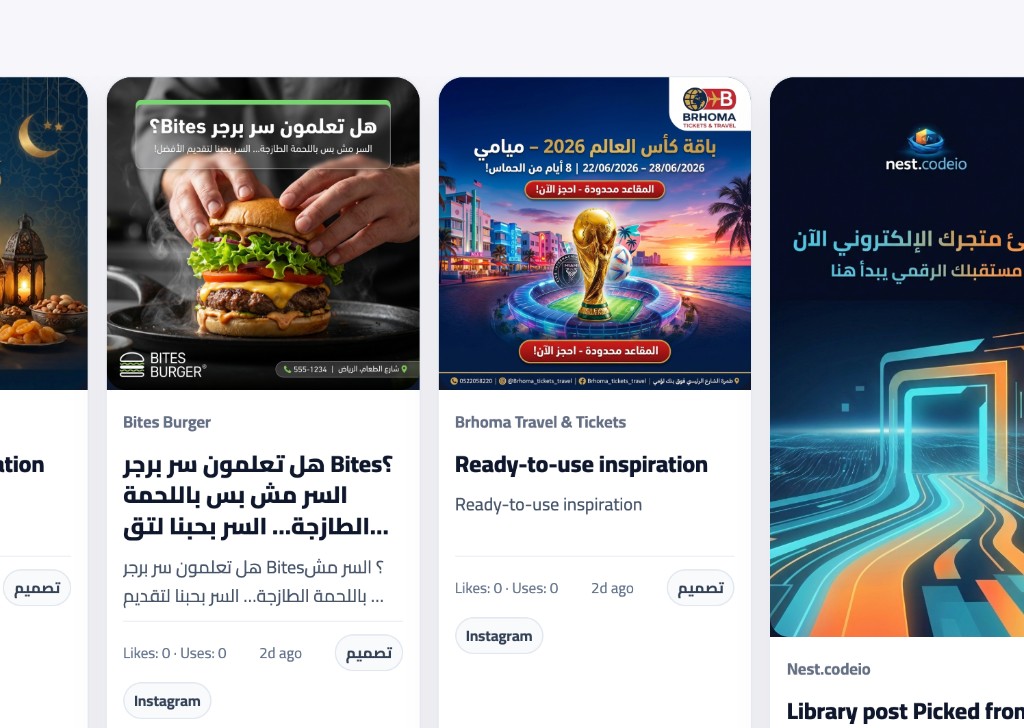
Browse community and saved reference posts for angles, layouts, and styles that work — then apply a design direction to your brand or clone a concept into Idea Swipe.
Save winning patterns by campaign goal so your team reuses proven visual directions instead of starting cold on every job.
- Save references by angle, style, audience, or campaign goal
- Reuse inspiration when briefing new jobs to improve consistency
- Build a team-ready library of proven visual patterns
Brand Optimizer
Strengthen the brand profile Adly uses for every job — logo, voice, audience, offers, and missing-field guidance in one place. Better inputs mean better designs, copy, and video scripts.
Generate Instagram highlight covers and Facebook cover + logo direction, manage My Templates, and review brand strength recommendations. Open from the sidebar or Create shortcuts.
- Complete logo, brand data, voice, audience, and offer context
- Use brand strength guidance to identify missing high-impact fields
- Generate Instagram highlight covers and Facebook cover + logo direction
- Review and update brand inputs regularly as your campaigns evolve
My Templates
Save reusable layouts so every post keeps the same footer, logo slot, typography, and structure while Adly regenerates the dynamic content inside.
Upload an existing design, generate a new shell, or pick from the library — then use From template in General Design and Multi Mode for consistent brand presentation at scale.
- Upload an existing layout or generate a new template
- Pick from your brand library when creating from template
- Use templates in Multi Mode and recurring post workflows
WhatsApp Bot
Connect your WhatsApp Business number so Adly replies to customer messages using your brand context, products, FAQs, and custom instructions — with human handoff when needed. Available on Solo plan and above.
Configure knowledge sources, reply examples, lead capture, booking intake, excluded numbers, and Meta-approved templates for business-initiated messages. Separate from Adly Autopilot on WhatsApp (your team’s creative assistant).
- Brand-aware replies on your business number
- Knowledge sources, instructions, and reply examples
- Lead capture, booking intake, and human handoff controls
- Meta-approved templates for business-initiated messages
Adly in Telegram
Link a Telegram group to your brand so the team can tag @Getadlybot for creative help, job updates, and Autopilot workflows inside chat.
Create a group, add the bot, then link from Profile → Integrations with the secure /link command. Tag the bot when you want a response; send stop when you want it to pause in that thread.
- Create a Telegram group and add @Getadlybot
- Link the group from Profile → Integrations with the secure /link command
- Tag the bot when you want Adly to respond; send stop when you want it to pause
Adly on WhatsApp
Adly Autopilot on WhatsApp lets you create jobs, review outputs, and manage workflows from your phone — your personal or team line, not the customer-facing WhatsApp Bot.
Connect from Profile → Integrations, then start image, video, and content jobs by message. Receive progress updates and approve results in chat without opening the web app.
- Connect your personal or team WhatsApp for Autopilot commands
- Start image, video, and content jobs without opening the web app
- Receive progress updates and approve results in chat
Multi-Brand Jobs
Create one announcement workflow that outputs adapted creatives across multiple selected brands.
- Select eligible brands and run one coordinated generation flow
- Keep messaging framework consistent while preserving brand identity
- Ideal for agencies managing parallel campaigns across client accounts
[Image placeholder - Multi-brand selection and batch output results]
Credits & Limitations
How Credits Work
Credits are consumed each time you generate content. Different types of content require different credit types:
- Image Credits: Used for design generation (1 credit per design)
- Text Credits: Used for ad copy generation (1 credit per copy)
- Video Credits: Used for video generation (1 credit per video)
- Landing Page Credits: Used for landing page generation (1 credit per page)
Credit Reset
Credits reset monthly on your billing date. Unused credits do not roll over to the next month.
Trial Credits
Adly includes limited free access to explore the product before subscribing. After that, you'll need an active subscription to continue generating content.
Limitations
- Multi Mode: Maximum 20 products per job
- Tips Carousel: 3-10 slides per carousel
- Image sizes: Post 3:4, Post 1:1, Story/Reel 9:16, or Advanced ratios
- Languages: English, Arabic
- Brand limits vary by plan (see Plans section)
Checking Your Credits
You can view your remaining credits in the header (desktop) or mobile menu. Credits are displayed by type: Images, Videos, Text, and Landing Pages.

Subscription Plans
Choose the plan that fits your content creation needs. Plans include limited free access to explore Adly before subscribing.
Spark
For budget-friendly starts
- Generations: 40 text / 30 image / 2 video
- 2 free edits for each image
- 1 landing page
- 1 business card
- 1 brand
- Brand optimization suite
- Idea generator
- Scheduler
- Inspiration board access
- Meta campaigns
- Leads management
- All core AI tools
- Chat support
Launch
For getting started fast
- Generations: 50 text / 30 image / 4 video
- 2 free edits for each image
- 3 landing pages
- 1 business card
- 1 brand
- Brand optimization suite
- Idea generator
- Scheduler
- Inspiration board access
- Meta campaigns
- Leads management
- All core AI tools
- Chat support
Solo
For solo creators ready to scale
- Generations: 100 text / 60 image / 10 video
- 5 landing pages
- 5 brands
- Business cards per brand
- Priority support
- WhatsApp bot
- Idea generator
- Scheduler
- Inspiration board access
- Meta campaigns
- Leads management
- All core AI tools
- Chat support
- Everything in Launch
Growth
For performance teams
- Generations: 250 text / 150 image / 25 video
- 30 landing pages
- 20 brands
- VIP support
- WhatsApp bot
- Multi-product mode
- Multi-brand mode
- Idea generator
- Scheduler
- Inspiration board access
- Meta campaigns
- Leads management
- All core AI tools
- Chat support
- Everything in Solo
Custom Plans
Need more? Contact our sales team for custom plans tailored to high-volume teams, specific credit allocations, or enterprise needs.
Contact salesHow to cancel your subscription
You cancel from My Profile, not from the public pricing page. The app opens a short guided flow; the last step applies the cancellation.
- Open My Profile and go to the Plan and Credits tab.
/ui/profile.html?tab=credits - In the My plan section, click Cancel plan when that button is visible.
When Cancel plan is shown
- The button appears for an active paid subscription.
- If you pay with Stripe, it can also appear during a trial or when the subscription is past due.
- The button stays hidden if a cancellation is already scheduled at the end of the billing period (Stripe), or when your subscription state is not one of the cases above.
If you pay with Stripe, Manage billing opens the Stripe customer portal (payment method and invoices). That is separate from Cancel plan.
After you start cancellation, the modal steps are: confirm, then choose a main reason (required; if you pick Other, More details is required), then summaries of your library and impact, important notes about access changes, an optional retention offer, and a final confirmation. On the last screen, Cancel my plan sends the cancellation request from the app.
On the final screen, the app also reminds you: You will keep your files, but business cards and landing pages will no longer be accessible.
Tips & Best Practices
Getting the Best Results
1. Write Clear Creative Direction
Be specific about what you want. Instead of "make it look good," describe:
- The mood or feeling you want (e.g., "modern and minimalist" or "bold and energetic")
- Key elements to include (e.g., "include a discount badge" or "show the product prominently")
- Color preferences (e.g., "use brand colors" or "warm color palette")
- Text requirements (e.g., "include call-to-action button" or "minimal text")
2. Use High-Quality Product Images
- Upload clear, well-lit product photos
- Remove backgrounds when possible for better integration
- Use consistent image styles across products in Multi Mode
- Ensure products are centered and clearly visible
3. Complete Your Brand Setup
- Upload a high-resolution logo (PNG with transparent background preferred)
- Fill in all business information fields
- Define your target audience accurately
- Add social media handles for better context
4. Multi Mode Best Practices
- Use clear, descriptive product names (they will appear on the design)
- Provide prices in the correct currency format
- Upload one image per product (not multiple images)
- Review all products before generating to ensure accuracy
- Product names stay in the same location across all designs for consistency
5. Effective Design Editing
- Be specific: "Remove the phone number" instead of "change the contact info"
- Request one change at a time for better results
- View all variations as thumbnails before approving
- For Multi Mode edits, changes apply to all products
6. Language Selection
- Select the language that matches your target audience
- RTL languages (Arabic) are automatically handled
- Ad copy generation respects your language selection
7. Managing Your Credits
- Check your credits before starting large projects
- Plan Multi Mode jobs carefully (1 credit per product)
- Use Tips Carousel efficiently (1 credit per slide)
- Credits reset monthly, so use them before they expire
Common Mistakes to Avoid
- ❌ Uploading multiple images for a single product in Multi Mode (use one image per product)
- ❌ Vague creative direction ("make it better" doesn't help)
- ❌ Forgetting to upload a logo (required for best results)
- ❌ Not reviewing product information before generating in Multi Mode
- ❌ Requesting too many changes in one edit (break it into multiple edits)
Processing Times
Most jobs finish quickly, but processing time depends on system load and complexity.
- Images: usually 1–2 minutes
- Videos: usually 2–4 minutes
In peak times and depending on system usage and pressure, this can increase. Be patient and don’t create new jobs. If after 10 minutes the job hasn’t been created, there is a problem. Contact support and try to create another job.
FAQ
How can I figure out the best job type for my idea without creating a job and burning credits?
Every job type has a "See examples" button in the create wizard. Hover it on desktop (or tap on mobile) to preview typical outputs for that type before you start generating.
Why am I charged even if I did not approve the image?
Credits are consumed when generation runs because compute and model cost happen at creation time, not at approval time. This is part of our business model, and plans are intentionally generous to give room for testing and iteration.
Why am I charged for edits?
Edits trigger a new generation pass, so they consume credits like any new output.
The first edit is free. After that, follow the Edit Guide to reduce paid retries and get better results with fewer attempts.
Why am I charged 9 image credits in Swipe mode?
Swipe mode is designed to generate multiple concepts in one run (3, 6, or 9), so credits match the selected concept count. If you need only one image, use General Design mode instead.
Why is the wrong logo showing on my designs?
Make sure you have uploaded your correct logo in the Brand Edit page. The system uses whatever logo is set for the selected brand.
Why is the wrong phone number showing?
Go to the Brand Edit page and verify that the phone number saved there is correct. The system pulls contact details directly from your brand settings.
What if I don't want to show some contact details?
When creating a job, you can choose which contact details to include (phone, website, email, etc.). For permanent settings, go to the Brand Edit page and configure which details should appear by default on all future jobs.
What is the difference between WhatsApp Bot and Adly on WhatsApp?
WhatsApp Bot replies to your customers on your connected business number using your brand knowledge and lead rules. Adly on WhatsApp is for you and your team — it lets you run Autopilot and create jobs from your own WhatsApp chat, not for public customer support.
Troubleshooting
Common Issues
"Not enough credits" Error
Solution: Check your remaining credits in the header. Upgrade your plan or wait for monthly credit reset. During trial, make sure you haven't exceeded trial limits.
Design Generation Failed
Solution: Check that you've provided all required inputs (creative direction, product images, etc.). Try simplifying your creative direction or regenerating the design.
Logo Not Appearing in Designs
Solution: Make sure you've uploaded a logo in your brand settings. The logo should be in PNG or JPG format. If the logo still doesn't appear, try re-uploading it.
Multi Mode Products Not Generating
Solution: Ensure each product has an image uploaded. Check that product names and prices are filled in. Make sure you haven't exceeded the 10-product limit.
Edit Request Failed
Solution: Be more specific in your edit request. Instead of "change it," say exactly what you want changed (e.g., "remove the phone number" or "change background to blue").
Publishing Failed
Solution: Check that your Facebook/Instagram accounts are properly connected. Ensure you have the necessary permissions. Try disconnecting and reconnecting your accounts.
WhatsApp Connection Troubleshooting
If WhatsApp does not connect, does not appear in Meta, or the bot does not reply as expected, start here.
1) I cannot connect WhatsApp, or I cannot see WhatsApp
Fix: You need a WhatsApp Business Account linked to your Meta/Facebook Page before Adly can connect it. If you do not have one linked yet, link it to your Facebook Page first:
2) WhatsApp is linked, but I still cannot see it in Adly
This usually means Adly does not currently have access to that WhatsApp asset, often because of an older Meta connection approval.
Fix (hard reset):
- Go to Facebook Business Integrations.
- Remove Adly from connected apps.
- Try to connect WhatsApp again from Adly.
Keep in mind: if you also publish Facebook or Instagram posts from Adly, reconnect Facebook and Instagram from Adly Integrations after removing Adly from Meta: https://getadly.com/ui/profile.html?tab=integrations
3) The bot is not replying as it should
Check the Knowledge and Setup tabs first. Make sure your knowledge sources finished analysis, your instructions and bot role are current, live replies are enabled, and human handoff or excluded numbers are not catching that conversation. Add reply examples for common questions so the bot has the exact style and facts you expect.
4) The Meta connection window opens, but connection does not finish
Allow popups for Adly and Meta, complete every Meta permission screen, and avoid closing the popup until Adly shows the connected state. If it still loops, remove Adly from Facebook Business Integrations and connect again.
5) The wrong WhatsApp number is connected
Disconnect the WhatsApp bot for that brand, then reconnect and choose the correct WhatsApp Business number in Meta. Use one WhatsApp Business number per Adly brand so replies stay aligned with the right business profile.
6) Messages arrive, but the bot does not answer a specific contact
Check whether that conversation is assigned to human handoff, whether live replies are paused, or whether the number is in the excluded numbers list. Release the conversation back to the bot when your team is done replying manually.
7) A template message is not sending
Business-initiated WhatsApp messages require Meta-approved templates. Open Templates, sync from Meta, and confirm the template status is approved before sending reminders or follow-ups.
8) WhatsApp disconnected after changing Meta settings
If someone changes Business Manager permissions, Page ownership, phone number ownership, or removes Adly from Meta integrations, the connection can stop working. Reconnect WhatsApp from Adly after the Meta permissions are fixed.
Facebook & Instagram Connection Issues (Most Common Fixes)
If publishing fails or posts go to the wrong channel, follow these fixes in order.
1) Cannot publish at all
Fix: Reconnect from Adly Integrations:
2) Publishes to Facebook but not Instagram (or the opposite)
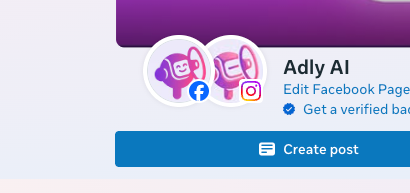
Fix: Make sure your Facebook Page and Instagram account are linked together in Meta Business settings.
Open: https://business.facebook.com/latest/home
In the connected accounts area, confirm both Facebook and Instagram are visible. If one is missing, link it first, then reconnect pages in Adly Integrations.
Through this link: https://getadly.com/ui/profile.html?tab=integrations
3) My page does not appear when linking in Adly
Fix (hard reset):
- Go to Facebook Business Integrations.
- Remove Adly from connected apps.
- Reconnect again from Adly Integrations.

4) Publishes to the wrong page
Fix: Do the same hard reset as above (remove Adly in Facebook Business Integrations, then reconnect from Adly). During reconnect, choose the exact Page and Instagram account pair you want to publish to.
Need More Help?
If you're still experiencing issues:
- Check your plan's support level (Community, Priority, VIP, or Dedicated Manager)
- Contact support through your account dashboard
- Review your job history for error messages
- Ensure your account is active and not expired